Az - Storage Accounts & Blobs

Tip

AWS हैकिंग सीखें और अभ्यास करें:HackTricks Training AWS Red Team Expert (ARTE)
GCP हैकिंग सीखें और अभ्यास करें: HackTricks Training GCP Red Team Expert (GRTE) Azure हैकिंग सीखें और अभ्यास करें: HackTricks Training Azure Red Team Expert (AzRTE)

HackTricks का समर्थन करें

मूल जानकारी

Azure Storage Accounts Microsoft Azure में ऐसी मौलिक सेवाएँ हैं जो स्केलेबल, सुरक्षित, और उच्च उपलब्ध क्लाउड विभिन्न डेटा प्रकारों के लिए storage प्रदान करती हैं, जिनमें blobs (binary large objects), files, queues, और tables शामिल हैं। ये अलग-अलग storage सेवाओं को एक ही namespace के अंतर्गत समूहित करने वाले containers के रूप में कार्य करती हैं ताकि प्रबंधन सरल हो।

मुख्य कॉन्फ़िगरेशन विकल्प:

  • प्रत्येक storage account का नाम Azure में यूनिक होना चाहिए।
  • प्रत्येक storage account किसी region या Azure extended zone में डिप्लॉय किया जाता है।
  • बेहतर प्रदर्शन के लिए storage account का premium संस्करण चुनना संभव है।
  • rack, drive और datacenter failures से बचाव के लिए 4 प्रकार की redundancy में से चयन संभव है।

सुरक्षा कॉन्फ़िगरेशन विकल्प:

  • Require secure transfer for REST API operations: storage के साथ किसी भी संचार में TLS आवश्यक करें
  • Allows enabling anonymous access on individual containers: यदि सक्षम नहीं किया गया तो भविष्य में anonymous access सक्षम करना संभव नहीं होगा
  • Enable storage account key access: यदि सक्षम नहीं, तो Shared Keys से access निषिद्ध होगा
  • Minimum TLS version
  • Permitted scope for copy operations: किसी भी storage account से, उसी Entra tenant के किसी भी storage account से, या उसी virtual network में private endpoints वाले storage accounts से अनुमति देना

Blob Storage विकल्प:

  • Allow cross-tenant replication
  • Access tier: Hot (अक्सर पहुंचा जाने वाला डेटा), Cool और Cold (दुर्लभ रूप से एक्सेस किया जाने वाला डेटा)

नेटवर्किंग विकल्प:

  • Network access:
  • सभी नेटवर्क से अनुमति दें
  • चयनित virtual networks और IP addresses से अनुमति दें
  • सार्वजनिक एक्सेस अक्षम करें और private access का उपयोग करें
  • Private endpoints: यह virtual network से storage account के लिए private कनेक्शन की अनुमति देता है

डेटा प्रोटेक्शन विकल्प:

  • Point-in-time restore for containers: containers को पहले की स्थिति पर restore करने की अनुमति देता है
  • इसके लिए versioning, change feed, और blob soft delete सक्षम होने चाहिए।
  • Enable soft delete for blobs: deleted blobs (यहाँ तक कि overwritten) के लिए दिनों में retention अवधि सक्षम करता है
  • Enable soft delete for containers: deleted containers के लिए retention अवधि दिनों में सक्षम करता है
  • Enable soft delete for file shares: deleted file shares के लिए retention अवधि दिनों में सक्षम करता है
  • Enable versioning for blobs: आपके blobs के पिछले संस्करण बनाए रखता है
  • Enable blob change feed: blobs पर create, modification, और delete परिवर्तनों के लॉग रखता है
  • Enable version-level immutability support: खाते-स्तर पर समय-आधारित retention policy सेट करने की अनुमति देता है जो सभी blob versions पर लागू होगा।
  • Version-level immutability support और point-in-time restore for containers को एक साथ सक्षम नहीं किया जा सकता।

एन्क्रिप्शन कॉन्फ़िगरेशन विकल्प:

  • Encryption type: Microsoft-managed keys (MMK) या Customer-managed keys (CMK) का उपयोग करना संभव है
  • Enable infrastructure encryption: डेटा को “अधिक सुरक्षा” के लिए डबल एन्क्रिप्ट करने की अनुमति देता है

Storage endpoints

Storage ServiceEndpoint
Blob storagehttps://.blob.core.windows.net

https://.blob.core.windows.net/?restype=container&comp=list
Data Lake Storagehttps://.dfs.core.windows.net
Azure Fileshttps://.file.core.windows.net
Queue storagehttps://.queue.core.windows.net
Table storagehttps://.table.core.windows.net

Public Exposure

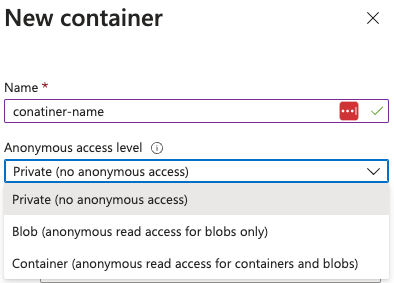
यदि “Allow Blob public access” enabled है (डिफ़ॉल्ट रूप से disabled), तो जब container बनाया जाता है तो यह संभव है:

  • blobs को पढ़ने के लिए public access दें (आपको नाम जानना होगा)।
  • container blobs की list करें और उन्हें read करें।
  • इसे पूरी तरह से private बनाएं

Static website ($web) exposure & leaked secrets

  • Static websites विशेष $web container से region-specific endpoint के माध्यम से परोसे जाते हैं जैसे https://<account>.z13.web.core.windows.net/
  • $web container blob API के माध्यम से publicAccess: null रिपोर्ट कर सकता है, फिर भी फ़ाइलें static site endpoint के माध्यम से पहुँच योग्य रहती हैं, इसलिए वहां config/IaC artifacts छोड़ने से secrets leak हो सकते हैं।
  • Quick audit workflow:
# Identify storage accounts with static website hosting enabled
az storage blob service-properties show --account-name <acc-name> --auth-mode login
# Enumerate containers (including $web) and their public flags
az storage container list --account-name <acc-name> --auth-mode login
# List files served by the static site even when publicAccess is null
az storage blob list --container-name '$web' --account-name <acc-name> --auth-mode login
# Pull suspicious files directly (e.g., IaC tfvars containing secrets/SAS)
az storage blob download -c '$web' --name iac/terraform.tfvars --file /dev/stdout --account-name <acc-name> --auth-mode login

अनाम blob एक्सपोज़र का ऑडिट

  • Locate storage accounts जो डेटा एक्सपोज़ कर सकते हैं: az storage account list | jq -r '.[] | select(.properties.allowBlobPublicAccess==true) | .name'. यदि allowBlobPublicAccess false है तो आप containers को public नहीं कर सकते।
  • Inspect risky accounts फ़्लैग और अन्य कमजोर सेटिंग्स की पुष्टि करने के लिए: az storage account show --name <acc> --query '{allow:properties.allowBlobPublicAccess, minTls:properties.minimumTlsVersion}'.
  • Enumerate container-level exposure जहाँ यह फ्लैग सक्षम है:
az storage container list --account-name <acc> \
--query '[].{name:name, access:properties.publicAccess}'
  • "Blob": अनाम पढ़ने की अनुमति है केवल जब blob नाम ज्ञात हो (कोई सूची नहीं).
  • "Container": प्रत्येक blob के लिए अनाम list + read.
  • null: निजी; प्रमाणीकरण आवश्यक.
  • क्रेडेंशियल्स के बिना पहुँच साबित करें:
  • यदि publicAccess Container है, तो अनाम सूचीकरण काम करेगा: curl "https://<acc>.blob.core.windows.net/<container>?restype=container&comp=list".
  • दोनों Blob और Container के लिए, जब नाम ज्ञात हो तो अनाम blob डाउनलोड संभव है:
az storage blob download -c <container> -n <blob> --account-name <acc> --file /dev/stdout
# or via raw HTTP
curl "https://<acc>.blob.core.windows.net/<container>/<blob>"

Connect to Storage

If you find any storage you can connect to you could use the tool Microsoft Azure Storage Explorer to do so.

Access to Storage

RBAC

यह संभव है कि Entra ID principals के साथ RBAC roles का उपयोग करके storage accounts तक पहुँच प्राप्त की जाए और यह सुझाया गया तरीका है।

Access Keys

स्टोरेज अकाउंट्स के पास access keys होते हैं जिनका उपयोग उन्हें एक्सेस करने के लिए किया जा सकता है। यह storage account को full access प्रदान करता है।

Shared Keys & Lite Shared Keys

यह संभव है कि access keys के साथ साइन किए गए Shared Keys को generate किया जाए ताकि signed URL के माध्यम से कुछ resources तक access authorize किया जा सके।

Note

ध्यान दें कि CanonicalizedResource हिस्सा storage services resource (URI) का प्रतिनिधित्व करता है। और यदि URL में कोई भाग encoded है, तो उसे CanonicalizedResource के अंदर भी encode किया जाना चाहिए।

Note

यह used by default by az cli है requests को authenticate करने के लिए। इसे Entra ID principal credentials का उपयोग करने के लिए, param --auth-mode login निर्दिष्ट करें।

  • यह संभव है कि blob, queue और file services के लिए shared key generate किया जाए, निम्नलिखित जानकारी को sign करके:
StringToSign = VERB + "\n" +
Content-Encoding + "\n" +
Content-Language + "\n" +
Content-Length + "\n" +
Content-MD5 + "\n" +
Content-Type + "\n" +
Date + "\n" +
If-Modified-Since + "\n" +
If-Match + "\n" +
If-None-Match + "\n" +
If-Unmodified-Since + "\n" +
Range + "\n" +
CanonicalizedHeaders +
CanonicalizedResource;
  • निम्नलिखित जानकारी पर हस्ताक्षर करके shared key for table services जनरेट करना संभव है:
StringToSign = VERB + "\n" +
Content-MD5 + "\n" +
Content-Type + "\n" +
Date + "\n" +
CanonicalizedResource;
  • निम्नलिखित जानकारी पर साइन करके lite shared key for blob, queue and file services जनरेट करना संभव है:
StringToSign = VERB + "\n" +
Content-MD5 + "\n" +
Content-Type + "\n" +
Date + "\n" +
CanonicalizedHeaders +
CanonicalizedResource;
  • यह निम्नलिखित जानकारी पर साइन करके lite shared key for table services बनाना संभव है:
StringToSign = Date + "\n"
CanonicalizedResource

फिर, कुंजी का उपयोग Authorization header में निम्नलिखित सिंटैक्स के अनुसार किया जा सकता है:

Authorization="[SharedKey|SharedKeyLite] <AccountName>:<Signature>"
#e.g.
Authorization: SharedKey myaccount:ctzMq410TV3wS7upTBcunJTDLEJwMAZuFPfr0mrrA08=

PUT http://myaccount/mycontainer?restype=container&timeout=30 HTTP/1.1
x-ms-version: 2014-02-14
x-ms-date: Fri, 26 Jun 2015 23:39:12 GMT
Authorization: SharedKey myaccount:ctzMq410TV3wS7upTBcunJTDLEJwMAZuFPfr0mrrA08=
Content-Length: 0

साझा एक्सेस सिग्नेचर (SAS)

Shared Access Signatures (SAS) सुरक्षित, समय-सीमित URLs हैं जो Azure Storage अकाउंट में resources तक पहुँचने के लिए specific permissions देती हैं बिना अकाउंट के access keys को उजागर किए। जबकि access keys सभी resources के लिए पूर्ण administrative access देती हैं, SAS granular control देती है — permissions (जैसे read या write) निर्दिष्ट करके और expiration time निर्धारित करके।

SAS Types

  • User delegation SAS: इसे एक Entra ID principal से बनाया जाता है जो SAS पर साइन करेगा और उपयोगकर्ता से SAS को permissions delegate करेगा। इसे केवल blob and data lake storage के साथ उपयोग किया जा सकता है (docs). सभी जनरेट किए गए user delegated SAS को revoke करना संभव है।
  • यह संभव है कि delegation SAS को उपयोगकर्ता के पास मौजूद permissions से “अधिक” permissions के साथ जनरेट किया जाए। हालांकि, अगर principal के पास वे permissions नहीं हैं, तो यह काम नहीं करेगा (no privesc).
  • Service SAS: यह storage account के किसी एक access key का उपयोग करके साइन किया जाता है। इसे single storage service के specific resources के लिए access देने में उपयोग किया जा सकता है। यदि key को renew किया जाता है, तो SAS काम करना बंद कर देगा।
  • Account SAS: यह भी storage account के किसी एक access key के साथ साइन होता है। यह storage account services (Blob, Queue, Table, File) में across resources तक access प्रदान करता है और service-level operations शामिल कर सकता है।

A SAS URL signed by an access key looks like this:

  • https://<container_name>.blob.core.windows.net/newcontainer?sp=r&st=2021-09-26T18:15:21Z&se=2021-10-27T02:14:21Z&spr=https&sv=2021-07-08&sr=c&sig=7S%2BZySOgy4aA3Dk0V1cJyTSIf1cW%2Fu3WFkhHV32%2B4PE%3D

A SAS URL signed as a user delegation looks like this:

  • https://<container_name>.blob.core.windows.net/testing-container?sp=r&st=2024-11-22T15:07:40Z&se=2024-11-22T23:07:40Z&skoid=d77c71a1-96e7-483d-bd51-bd753aa66e62&sktid=fdd066e1-ee37-49bc-b08f-d0e152119b04&skt=2024-11-22T15:07:40Z&ske=2024-11-22T23:07:40Z&sks=b&skv=2022-11-02&spr=https&sv=2022-11-02&sr=c&sig=7s5dJyeE6klUNRulUj9TNL0tMj2K7mtxyRc97xbYDqs%3D

Note some http params:

  • se पैरामीटर SAS की समाप्ति तिथि दर्शाता है।
  • sp पैरामीटर SAS की अनुमतियाँ दर्शाता है।
  • sig SAS को मान्य करने वाला signature है।

SAS permissions

जब SAS जनरेट किया जा रहा होता है, तो यह निर्दिष्ट करना आवश्यक होता है कि इसे कौन‑सी permissions देनी चाहिए। जिस object पर SAS जनरेट किया जा रहा है उसके अनुसार अलग‑अलग permissions शामिल हो सकती हैं। उदाहरण के लिए:

  • (a)dd, (c)reate, (d)elete, (e)xecute, (f)ilter_by_tags, (i)set_immutability_policy, (l)ist, (m)ove, (r)ead, (t)ag, (w)rite, (x)delete_previous_version, (y)permanent_delete

SFTP Support for Azure Blob Storage

Azure Blob Storage अब SSH File Transfer Protocol (SFTP) को सपोर्ट करता है, जो Blob Storage पर सीधे secure file transfer और management को सक्षम बनाता है बिना custom solutions या third-party products की आवश्यकता के।

Key Features

  • Protocol Support: SFTP उन Blob Storage accounts के साथ काम करता है जिनमें hierarchical namespace (HNS) कॉन्फ़िगर किया गया है। यह blobs को directories और subdirectories में व्यवस्थित करता है ताकि navigation आसान हो।
  • Security: SFTP local user identities का उपयोग authentication के लिए करता है और RBAC या ABAC के साथ एकीकृत नहीं होता। प्रत्येक local user निम्न तरीकों से authenticate कर सकता है:
    • Azure-generated passwords
    • Public-private SSH key pairs
  • Granular Permissions: Read, Write, Delete, और List जैसी permissions local users को 100 containers तक असाइन की जा सकती हैं।
  • Networking Considerations: SFTP connections port 22 के माध्यम से बनाई जाती हैं। Azure ऐसे नेटवर्क कॉन्फ़िगरेशन्स (firewalls, private endpoints, या virtual networks) को सपोर्ट करता है ताकि SFTP ट्रैफ़िक सुरक्षित रहे।

Setup Requirements

  • Hierarchical Namespace: HNS को storage account बनाते समय सक्षम किया जाना चाहिए।
  • Supported Encryption: इसके लिए Microsoft Security Development Lifecycle (SDL)-approved cryptographic algorithms (उदा., rsa-sha2-256, ecdsa-sha2-nistp256) की आवश्यकता होती है।
  • SFTP Configuration:
    • storage account पर SFTP को सक्षम करें।
    • उपयुक्त permissions के साथ local user identities बनाएं।
    • उपयोगकर्ताओं के लिए home directories कॉन्फ़िगर करें ताकि container के अंदर उनकी starting location निर्धारित हो सके।

Permissions

अनुमतिप्रतीकविवरण
Readrफाइल की सामग्री पढ़ें।
Writewफाइलें अपलोड करें और directories बनाएं।
Listldirectories की सामग्री सूचीबद्ध करें।
Deletedफाइलें या directories हटाएँ।
Createcफाइलें या directories बनाएं।
Modify Ownershipoमालिक यूज़र या समूह बदलें।
Modify Permissionspफाइलों या directories पर ACLs बदलें।

Enumeration

az cli enumeration ```bash # Get storage accounts az storage account list #Get the account name from here

BLOB STORAGE

List containers

az storage container list –account-name

Check if public access is allowed

az storage container show-permission
–account-name
-n

Make a container public

az storage container set-permission
–public-access container
–account-name
-n

List blobs in a container

az storage blob list
–container-name
–account-name

Download blob

az storage blob download
–account-name
–container-name
–name
–file </path/to/local/file>

Create container policy

az storage container policy create
–account-name mystorageaccount
–container-name mycontainer
–name fullaccesspolicy
–permissions racwdl
–start 2023-11-22T00:00Z
–expiry 2024-11-22T00:00Z

QUEUE

az storage queue list –account-name az storage message peek –account-name –queue-name

ACCESS KEYS

az storage account keys list –account-name

Check key policies (expiration time?)

az storage account show -n –query “{KeyPolicy:keyPolicy}”

Once having the key, it’s possible to use it with the argument –account-key

Enum blobs with account key

az storage blob list
–container-name
–account-name
–account-key “ZrF40pkVKvWPUr[…]v7LZw==”

Download a file using an account key

az storage blob download
–account-name
–account-key “ZrF40pkVKvWPUr[…]v7LZw==”
–container-name
–name
–file </path/to/local/file>

Upload a file using an account key

az storage blob upload
–account-name
–account-key “ZrF40pkVKvWPUr[…]v7LZw==”
–container-name
–file </path/to/local/file>

SAS

List access policies

az storage <container|queue|share|table> policy list
–account-name
–container-name

Generate SAS with all permissions using an access key

az storage <container|queue|share|table|blob> generate-sas
–permissions acdefilmrtwxy
–expiry 2024-12-31T23:59:00Z
–account-name
-n

Generate SAS with all permissions using via user delegation

az storage <container|queue|share|table|blob> generate-sas
–permissions acdefilmrtwxy
–expiry 2024-12-31T23:59:00Z
–account-name
–as-user –auth-mode login
-n

Generate account SAS

az storage account generate-sas
–expiry 2024-12-31T23:59:00Z
–account-name
–services qt
–resource-types sco
–permissions acdfilrtuwxy

Use the returned SAS key with the param –sas-token

e.g.

az storage blob show
–account-name
–container-name
–sas-token ‘se=2024-12-31T23%3A59%3A00Z&sp=racwdxyltfmei&sv=2022-11-02&sr=c&sig=ym%2Bu%2BQp5qqrPotIK5/rrm7EMMxZRwF/hMWLfK1VWy6E%3D’
–name ‘asd.txt’

#Local-Users

List users

az storage account local-user list
–account-name
–resource-group

Get user

az storage account local-user show
–account-name
–resource-group
–name

List keys

az storage account local-user list
–account-name
–resource-group

</details>

{{#endtab }}

{{#tab name="Az PowerShell" }}

<details>
<summary>Az PowerShell enumeration</summary>
```powershell
# Get storage accounts
Get-AzStorageAccount | fl
# Get rules to access the storage account
Get-AzStorageAccount | select -ExpandProperty NetworkRuleSet
# Get IPs
(Get-AzStorageAccount | select -ExpandProperty NetworkRuleSet).IPRules
# Get containers of a storage account
Get-AzStorageContainer -Context (Get-AzStorageAccount -name <NAME> -ResourceGroupName <NAME>).context
# Get blobs inside container
Get-AzStorageBlob -Container epbackup-planetary -Context (Get-AzStorageAccount -name <name> -ResourceGroupName <name>).context
# Get a blob from a container
Get-AzStorageBlobContent -Container <NAME> -Context (Get-AzStorageAccount -name <NAME> -ResourceGroupName <NAME>).context -Blob <blob_name> -Destination .\Desktop\filename.txt

# Create a Container Policy
New-AzStorageContainerStoredAccessPolicy `
-Context (Get-AzStorageAccount -Name <NAME> -ResourceGroupName <NAME>).Context `
-Container <container-name> `
-Policy <policy-name> `
-Permission racwdl `
-StartTime (Get-Date "2023-11-22T00:00Z") `
-ExpiryTime (Get-Date "2024-11-22T00:00Z")
#Get Container policy
Get-AzStorageContainerStoredAccessPolicy `
-Context (Get-AzStorageAccount -Name <NAME> -ResourceGroupName <NAME>).Context `
-Container "storageaccount1994container"

# Queue Management
Get-AzStorageQueue -Context (Get-AzStorageAccount -Name <NAME> -ResourceGroupName <NAME>).Context
(Get-AzStorageQueue -Name <NAME> -Context (Get-AzStorageAccount -name <NAME> -ResourceGroupName <NAME>).Context).QueueClient.PeekMessage().Value

#Blob Container
Get-AzStorageBlob -Container <container-name> -Context $(Get-AzStorageAccount -name "teststorageaccount1998az" -ResourceGroupName "testStorageGroup").Context
Get-AzStorageBlobContent `
-Container <container-name> `
-Blob <blob-name> `
-Destination <local-path> `
-Context $(Get-AzStorageAccount -name "teststorageaccount1998az" -ResourceGroupName "testStorageGroup").Context

Set-AzStorageBlobContent `
-Container <container-name> `
-File <local-file-path> `
-Blob <blob-name> `
-Context $(Get-AzStorageAccount -name "teststorageaccount1998az" -ResourceGroupName "testStorageGroup").Context

# Shared Access Signatures (SAS)
Get-AzStorageContainerAcl `
-Container <container-name> `
-Context (Get-AzStorageAccount -Name <NAME> -ResourceGroupName <NAME>).Context

New-AzStorageBlobSASToken `
-Context $ctx `
-Container <container-name> `
-Blob <blob-name> `
-Permission racwdl `
-ExpiryTime (Get-Date "2024-12-31T23:59:00Z")

फ़ाइल शेयर

Az - File Shares

Privilege Escalation

Az - Storage Privesc

Post Exploitation

Az - Blob Storage Post Exploitation

Persistence

Az - Storage Persistence

संदर्भ

Tip

AWS हैकिंग सीखें और अभ्यास करें:HackTricks Training AWS Red Team Expert (ARTE)
GCP हैकिंग सीखें और अभ्यास करें: HackTricks Training GCP Red Team Expert (GRTE) Azure हैकिंग सीखें और अभ्यास करें: HackTricks Training Azure Red Team Expert (AzRTE)
HackTricks का समर्थन करें