.table.core.windows.net
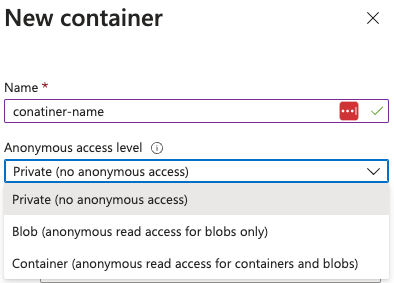
“Allow Blob public access” が 有効 (デフォルトは無効)の場合、コンテナ作成時に以下が可能です:
public access to read blobs (名前を知っていれば読み取り可能)を許可List container blobs および read する完全に private にする
Static websites は特別な $web コンテナからリージョン固有のエンドポイント(例: https://<account>.z13.web.core.windows.net/)経由で配信されます。$web コンテナは blob API 経由で publicAccess: null を返す場合がありますが、static site エンドポイント経由でファイルに到達できるため、そこに config/IaC アーティファクトを置くと secrets が leak する可能性があります。クイック監査ワークフロー:
# Identify storage accounts with static website hosting enabled
az storage blob service-properties show --account-name <acc-name> --auth-mode login
# Enumerate containers (including $web) and their public flags
az storage container list --account-name <acc-name> --auth-mode login
# List files served by the static site even when publicAccess is null
az storage blob list --container-name '$web' --account-name <acc-name> --auth-mode login
# Pull suspicious files directly (e.g., IaC tfvars containing secrets/SAS)
az storage blob download -c '$web' --name iac/terraform.tfvars --file /dev/stdout --account-name <acc-name> --auth-mode login
データを公開する可能性のある storage accounts を特定する : az storage account list | jq -r '.[] | select(.properties.allowBlobPublicAccess==true) | .name'。allowBlobPublicAccess が false の場合、コンテナを公開に設定できません。リスクのあるアカウントを確認してフラグや他の脆弱な設定を検証する : az storage account show --name <acc> --query '{allow:properties.allowBlobPublicAccess, minTls:properties.minimumTlsVersion}'。フラグが有効なアカウントでのコンテナ単位の公開状況を列挙する :
az storage container list --account-name <acc> \
--query '[].{name:name, access:properties.publicAccess}'
"Blob": 匿名読み取りが許可される ただし blob の名前が分かっている場合のみ (一覧表示不可)。"Container": 匿名で 一覧取得 + 読み取り が可能(全ての blob)。null: 非公開; 認証が必要。資格情報なしでアクセスを証明する :もし publicAccess が Container の場合、匿名での一覧取得が可能です: curl "https://<acc>.blob.core.windows.net/<container>?restype=container&comp=list".
Blob と Container の両方について、名前が判明している場合は匿名での blob ダウンロードが可能です:
az storage blob download -c <container> -n <blob> --account-name <acc> --file /dev/stdout
# or via raw HTTP
curl "https://<acc>.blob.core.windows.net/<container>/<blob>"
接続できる storage を見つけた場合、ツール Microsoft Azure Storage Explorer
Entra ID プリンシパルを RBAC roles と組み合わせて storage accounts にアクセスすることが可能で、これは推奨される方法です。
storage accounts にはアクセスに使用できる access keys があり、これは 完全なアクセス権 を storage account に与えます。
access keys で署名された generate Shared Keys
CanonicalizedResource 部分は storage services のリソース (URI) を表します。URL の任意の部分がエンコードされている場合、CanonicalizedResource 内でもエンコードされている必要があります。
これは デフォルトで az cli によって使用されます (リクエストの認証のため)。Entra ID プリンシパルの資格情報を使わせるにはパラメータ --auth-mode login を指定してください。
次の情報に署名して、shared key for blob, queue and file services を生成できます:
StringToSign = VERB + "\n" +
Content-Encoding + "\n" +
Content-Language + "\n" +
Content-Length + "\n" +
Content-MD5 + "\n" +
Content-Type + "\n" +
Date + "\n" +
If-Modified-Since + "\n" +
If-Match + "\n" +
If-None-Match + "\n" +
If-Unmodified-Since + "\n" +
Range + "\n" +
CanonicalizedHeaders +
CanonicalizedResource;
次の情報に署名することで、テーブルサービス用の共有キー を生成できます:
StringToSign = VERB + "\n" +
Content-MD5 + "\n" +
Content-Type + "\n" +
Date + "\n" +
CanonicalizedResource;
次の情報に署名することで、lite shared key for blob, queue and file services を生成できます:
StringToSign = VERB + "\n" +
Content-MD5 + "\n" +
Content-Type + "\n" +
Date + "\n" +
CanonicalizedHeaders +
CanonicalizedResource;
次の情報に署名することで、lite shared key for table services を生成できます:
StringToSign = Date + "\n"
CanonicalizedResource
次に、キーを使用するには、次の構文に従って Authorization header に指定します:
Authorization="[SharedKey|SharedKeyLite] <AccountName>:<Signature>"
#e.g.
Authorization: SharedKey myaccount:ctzMq410TV3wS7upTBcunJTDLEJwMAZuFPfr0mrrA08=
PUT http://myaccount/mycontainer?restype=container&timeout=30 HTTP/1.1
x-ms-version: 2014-02-14
x-ms-date: Fri, 26 Jun 2015 23:39:12 GMT
Authorization: SharedKey myaccount:ctzMq410TV3wS7upTBcunJTDLEJwMAZuFPfr0mrrA08=
Content-Length: 0
Shared Access Signatures (SAS) は、ストレージアカウントのアクセスキーを公開することなく、特定のリソースに対するアクセス権限を限定的かつ時間制限付きで付与する安全なURLです。アクセスキーがすべてのリソースに対するフル管理アクセスを提供する一方で、SAS は読み取りや書き込みなどの権限を指定し、有効期限を設定することできめ細かい制御を可能にします。
User delegation SAS : これは Entra ID principal から作成され、SAS に署名してユーザーからSASへ権限を委譲します。blob and data lake storage でのみ使用できます (docs ). 生成された user delegated SAS をすべて revoke することが可能です。ユーザーが持つ権限より「多い」権限を持つ delegation SAS を生成できる場合があっても、principal 自身にその権限がなければ動作しません(no privesc)。
Service SAS : これはストレージアカウントのいずれかの access keys を使って署名されます。単一のストレージサービス内の特定のリソースへのアクセスを付与するために使用できます。キーが更新されると、SAS は無効になります。Account SAS : これもストレージアカウントの access keys で署名されます。Blob, Queue, Table, File といったストレージアカウントのサービス全体に対するリソースアクセスを付与でき、サービスレベルの操作を含めることができます。
A SAS URL signed by an access key looks like this:
https://<container_name>.blob.core.windows.net/newcontainer?sp=r&st=2021-09-26T18:15:21Z&se=2021-10-27T02:14:21Z&spr=https&sv=2021-07-08&sr=c&sig=7S%2BZySOgy4aA3Dk0V1cJyTSIf1cW%2Fu3WFkhHV32%2B4PE%3D
A SAS URL signed as a user delegation looks like this:
https://<container_name>.blob.core.windows.net/testing-container?sp=r&st=2024-11-22T15:07:40Z&se=2024-11-22T23:07:40Z&skoid=d77c71a1-96e7-483d-bd51-bd753aa66e62&sktid=fdd066e1-ee37-49bc-b08f-d0e152119b04&skt=2024-11-22T15:07:40Z&ske=2024-11-22T23:07:40Z&sks=b&skv=2022-11-02&spr=https&sv=2022-11-02&sr=c&sig=7s5dJyeE6klUNRulUj9TNL0tMj2K7mtxyRc97xbYDqs%3D
Note some http params :
The seexpiration date of the SAS
The sppermissions of the SAS
The sigsignature validating the SAS
SAS を生成する際には付与する権限を指定する必要があります。SAS を生成するオブジェクトによって含められる権限は異なります。例えば:
(a)dd, (c)reate, (d)elete, (e)xecute, (f)ilter_by_tags, (i)set_immutability_policy, (l)ist, (m)ove, (r)ead, (t)ag, (w)rite, (x)delete_previous_version, (y)permanent_delete
Azure Blob Storage は現在 SSH File Transfer Protocol (SFTP) をサポートしており、カスタムソリューションやサードパーティ製品を必要とせずに Blob Storage へ直接セキュアなファイル転送と管理が可能です。
Protocol Support: SFTP は hierarchical namespace (HNS) を有効化した Blob Storage アカウントで動作します。これにより blobs をディレクトリやサブディレクトリで整理し、ナビゲーションが容易になります。
Security: SFTP は認証に local user identities を使用し、RBAC や ABAC と統合しません。各ローカルユーザーは以下の方法で認証できます:
Azure-generated passwords
Public-private SSH key pairs
Granular Permissions: Read, Write, Delete, List といった権限をローカルユーザーに対して最大 100 コンテナまで割り当てることができます。
Networking Considerations: SFTP 接続はポート 22 を通じて行われます。Azure はファイアウォール、private endpoints、virtual networks などのネットワーク構成で SFTP トラフィックを保護することをサポートします。
Hierarchical Namespace: HNS はストレージアカウント作成時に有効にする必要があります。
Supported Encryption: Microsoft Security Development Lifecycle (SDL) 承認済みの暗号アルゴリズムが必要です(例: rsa-sha2-256, ecdsa-sha2-nistp256)。
SFTP Configuration:
Enable SFTP on the storage account.
Create local user identities with appropriate permissions.
Configure home directories for users to define their starting location within the container.
Permission Symbol Description
Read rファイル内容の読み取り。 Write wファイルのアップロードおよびディレクトリ作成。 List lディレクトリの内容を一覧表示。 Delete dファイルやディレクトリの削除。 Create cファイルやディレクトリの作成。 Modify Ownership o所有ユーザーまたはグループの変更。 Modify Permissions pファイルやディレクトリの ACL を変更。
az cli
az cli enumeration
```bash
# Get storage accounts
az storage account list #Get the account name from here
az storage container list –account-name
az storage container show-permission
az storage container set-permission
az storage blob list
az storage blob download
az storage container policy create
az storage queue list –account-name
az storage message peek –account-name –queue-name
az storage account keys list –account-name
az storage account show -n –query “{KeyPolicy:keyPolicy}”
az storage blob list
az storage blob download
az storage blob upload
az storage <container|queue|share|table> policy list
az storage <container|queue|share|table|blob> generate-sas
az storage <container|queue|share|table|blob> generate-sas
az storage account generate-sas
az storage blob show
#Local-Users
az storage account local-user list
az storage account local-user show
az storage account local-user list
</details>
{{#endtab }}
{{#tab name="Az PowerShell" }}
<details>
<summary>Az PowerShell enumeration</summary>
```powershell
# Get storage accounts
Get-AzStorageAccount | fl
# Get rules to access the storage account
Get-AzStorageAccount | select -ExpandProperty NetworkRuleSet
# Get IPs
(Get-AzStorageAccount | select -ExpandProperty NetworkRuleSet).IPRules
# Get containers of a storage account
Get-AzStorageContainer -Context (Get-AzStorageAccount -name <NAME> -ResourceGroupName <NAME>).context
# Get blobs inside container
Get-AzStorageBlob -Container epbackup-planetary -Context (Get-AzStorageAccount -name <name> -ResourceGroupName <name>).context
# Get a blob from a container
Get-AzStorageBlobContent -Container <NAME> -Context (Get-AzStorageAccount -name <NAME> -ResourceGroupName <NAME>).context -Blob <blob_name> -Destination .\Desktop\filename.txt
# Create a Container Policy
New-AzStorageContainerStoredAccessPolicy `
-Context (Get-AzStorageAccount -Name <NAME> -ResourceGroupName <NAME>).Context `
-Container <container-name> `
-Policy <policy-name> `
-Permission racwdl `
-StartTime (Get-Date "2023-11-22T00:00Z") `
-ExpiryTime (Get-Date "2024-11-22T00:00Z")
#Get Container policy
Get-AzStorageContainerStoredAccessPolicy `
-Context (Get-AzStorageAccount -Name <NAME> -ResourceGroupName <NAME>).Context `
-Container "storageaccount1994container"
# Queue Management
Get-AzStorageQueue -Context (Get-AzStorageAccount -Name <NAME> -ResourceGroupName <NAME>).Context
(Get-AzStorageQueue -Name <NAME> -Context (Get-AzStorageAccount -name <NAME> -ResourceGroupName <NAME>).Context).QueueClient.PeekMessage().Value
#Blob Container
Get-AzStorageBlob -Container <container-name> -Context $(Get-AzStorageAccount -name "teststorageaccount1998az" -ResourceGroupName "testStorageGroup").Context
Get-AzStorageBlobContent `
-Container <container-name> `
-Blob <blob-name> `
-Destination <local-path> `
-Context $(Get-AzStorageAccount -name "teststorageaccount1998az" -ResourceGroupName "testStorageGroup").Context
Set-AzStorageBlobContent `
-Container <container-name> `
-File <local-file-path> `
-Blob <blob-name> `
-Context $(Get-AzStorageAccount -name "teststorageaccount1998az" -ResourceGroupName "testStorageGroup").Context
# Shared Access Signatures (SAS)
Get-AzStorageContainerAcl `
-Container <container-name> `
-Context (Get-AzStorageAccount -Name <NAME> -ResourceGroupName <NAME>).Context
New-AzStorageBlobSASToken `
-Context $ctx `
-Container <container-name> `
-Blob <blob-name> `
-Permission racwdl `
-ExpiryTime (Get-Date "2024-12-31T23:59:00Z")
Az - File Shares
Az - Storage Privesc
Az - Blob Storage Post Exploitation
Az - Storage Persistence
学んで実践する AWS Hacking:HackTricks Training AWS Red Team Expert (ARTE) HackTricks Training GCP Red Team Expert (GRTE) HackTricks Training Azure Red Team Expert (AzRTE)
HackTricks をサポートする
 HackTricks Cloud
HackTricks Training AWS Red Team Expert (ARTE)
HackTricks Training GCP Red Team Expert (GRTE)
HackTricks Training Azure Red Team Expert (AzRTE)
.png)