Az - Storage Accounts & Blobs

Tip

AWS Hacking’i öğrenin ve pratik yapın:HackTricks Training AWS Red Team Expert (ARTE)
GCP Hacking’i öğrenin ve pratik yapın: HackTricks Training GCP Red Team Expert (GRTE)
Az Hacking’i öğrenin ve pratik yapın: HackTricks Training Azure Red Team Expert (AzRTE)

HackTricks'i Destekleyin

Temel Bilgiler

Azure Storage Accounts, Microsoft Azure içinde çeşitli veri türleri için ölçeklenebilir, güvenli ve yüksek kullanılabilirlikli bulut depolama sağlayan temel servislerdir; buna blobs (binary large objects), files, queues ve tables dahildir. Bu farklı storage servislerini tek bir namespace altında gruplandıran konteynerler olarak hizmet verirler ve yönetimi kolaylaştırır.

Temel yapılandırma seçenekleri:

  • Her storage account’ın Azure genelinde benzersiz bir isme sahip olması gerekir.
  • Her storage account bir region veya bir Azure extended zone içinde dağıtılır.
  • Daha iyi performans için storage account’ın premium sürümünü seçmek mümkündür.
  • Rack, drive ve datacenter arızalarına karşı koruma için 4 farklı redundancy türünden birini seçmek mümkündür.

Güvenlik yapılandırma seçenekleri:

  • Require secure transfer for REST API operations: Storage ile tüm iletişimde TLS gerektirir.
  • Allows enabling anonymous access on individual containers: Eğer etkinleştirilmezse, gelecekte anonim erişim etkinleştirilemez.
  • Enable storage account key access: Eğer kapalıysa, Shared Keys ile erişim yasaklanır.
  • Minimum TLS version
  • Permitted scope for copy operations: Herhangi bir storage account’tan, aynı Entra tenant’ındaki herhangi bir storage account’tan veya aynı virtual network’te private endpoints olan storage account’tan izin verir.

Blob Storage seçenekleri:

  • Allow cross-tenant replication
  • Access tier: Hot (sık erişilen veriler), Cool ve Cold (nadiren erişilen veriler)

Ağ seçenekleri:

  • Network access:
    • Tüm network’lerden izin ver
    • Seçili virtual networks ve IP adreslerinden izin ver
    • Public erişimi devre dışı bırak ve private erişim kullan
  • Private endpoints: Virtual network’ten storage account’a özel bir bağlantıya izin verir.

Veri koruma seçenekleri:

  • Point-in-time restore for containers: Container’ları önceki bir duruma geri yüklemeye izin verir.
  • Bu, versioning, change feed ve blob soft delete’in etkinleştirilmesini gerektirir.
  • Enable soft delete for blobs: Silinmiş blob’lar için (üstüne yazılmış olsa bile) gün cinsinden saklama süresi sağlar.
  • Enable soft delete for containers: Silinmiş container’lar için gün cinsinden saklama süresi sağlar.
  • Enable soft delete for file shares: Silinmiş file share’ler için gün cinsinden saklama süresi sağlar.
  • Enable versioning for blobs: Blob’larınızın önceki versiyonlarını korur.
  • Enable blob change feed: Blob’larda oluşturma, değiştirme ve silme değişikliklerinin loglarını tutar.
  • Enable version-level immutability support: Hesap düzeyinde tüm blob versiyonlarına uygulanacak zaman tabanlı bir saklama politikası belirlemenize izin verir.
  • Version-level immutability support ile point-in-time restore for containers aynı anda etkinleştirilemez.

Şifreleme yapılandırma seçenekleri:

  • Encryption type: Microsoft-managed keys (MMK) veya Customer-managed keys (CMK) kullanılabilir.
  • Enable infrastructure encryption: Verinin “daha fazla güvenlik” için çift şifrelenmesine izin verir.

Storage endpoints

Storage ServiceEndpoint
Blob storagehttps://.blob.core.windows.net

https://.blob.core.windows.net/?restype=container&comp=list
Data Lake Storagehttps://.dfs.core.windows.net
Azure Fileshttps://.file.core.windows.net
Queue storagehttps://.queue.core.windows.net
Table storagehttps://.table.core.windows.net

Public Exposure

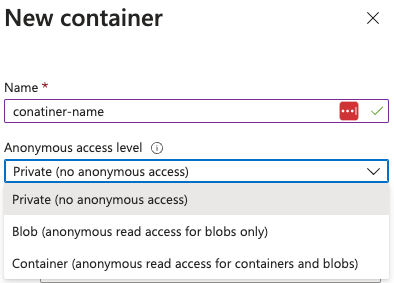
Eğer “Allow Blob public access” enabled ise (varsayılan olarak disabled), bir container oluşturulurken şunlar mümkün olur:

  • public access to read blobs verme (ismi bilinmesi gerekir).
  • Container blob’larını listeleyip bunları okuma.
  • Tamamen private yapma.

Static website ($web) exposure & leaked secrets

  • Static websites özel $web container’ından, bölge-özgü bir endpoint (örn. https://<account>.z13.web.core.windows.net/) üzerinden servis edilir.
  • $web container blob API aracılığıyla publicAccess: null raporlayabilir, ancak dosyalar static site endpoint’i üzerinden yine de erişilebilir olduğundan, config/IaC artifaktlarını buraya bırakmak can leak secrets.
  • Hızlı denetim iş akışı:
# Identify storage accounts with static website hosting enabled
az storage blob service-properties show --account-name <acc-name> --auth-mode login
# Enumerate containers (including $web) and their public flags
az storage container list --account-name <acc-name> --auth-mode login
# List files served by the static site even when publicAccess is null
az storage blob list --container-name '$web' --account-name <acc-name> --auth-mode login
# Pull suspicious files directly (e.g., IaC tfvars containing secrets/SAS)
az storage blob download -c '$web' --name iac/terraform.tfvars --file /dev/stdout --account-name <acc-name> --auth-mode login

Anonim blob maruziyetini denetleme

  • Veri açığa çıkarabilecek storage account’ları bulun: az storage account list | jq -r '.[] | select(.properties.allowBlobPublicAccess==true) | .name'. Eğer allowBlobPublicAccess false ise container’ları public yapamazsınız.
  • Riskli account’ları inceleyin bayrağı ve diğer zayıf ayarları doğrulamak için: az storage account show --name <acc> --query '{allow:properties.allowBlobPublicAccess, minTls:properties.minimumTlsVersion}'.
  • Flag etkin olan hesaplarda container düzeyindeki maruziyeti listeleyin:
az storage container list --account-name <acc> \
--query '[].{name:name, access:properties.publicAccess}'
  • "Blob": anonim okumaya izin verilir sadece blob adı bilindiğinde (listeleme yok).
  • "Container": her blob için anonim listeleme + okuma.
  • null: özel; kimlik doğrulama gerekli.
  • Kimlik bilgisi olmadan erişimi kanıtlayın:
  • Eğer publicAccess Container ise, anonim listeleme çalışır: curl "https://<acc>.blob.core.windows.net/<container>?restype=container&comp=list".
  • Hem Blob hem Container için, blob adı bilindiğinde anonim blob indirme çalışır:
az storage blob download -c <container> -n <blob> --account-name <acc> --file /dev/stdout
# or via raw HTTP
curl "https://<acc>.blob.core.windows.net/<container>/<blob>"

Depolamaya Bağlan

Bağlanabileceğiniz herhangi bir storage bulursanız, bunu yapmak için Microsoft Azure Storage Explorer aracını kullanabilirsiniz.

Storage’a Erişim

RBAC

Entra ID principal’lerini RBAC roles ile storage hesaplarına erişim için kullanmak mümkündür ve bu önerilen yoldur.

Erişim Anahtarları

Storage hesaplarının erişim sağlamak için kullanılabilecek access keys (erişim anahtarları) vardır. Bu, storage hesabına tam erişim sağlar.

Shared Keys & Lite Shared Keys

Erişim anahtarları ile imzalanmış generate Shared Keys oluşturmak mümkündür; bunlar imzalı bir URL aracılığıyla belirli kaynaklara erişimi yetkilendirmek için kullanılır.

Note

Dikkat: CanonicalizedResource kısmı storage servisinin kaynağını (URI) temsil eder. URL’deki herhangi bir kısım encode edilmişse, CanonicalizedResource içinde de encode edilmiş olmalıdır.

Note

Bu, istekleri doğrulamak için varsayılan olarak az cli tarafından kullanılır. az’ın Entra ID principal kimlik bilgilerini kullanmasını sağlamak için --auth-mode login parametresini belirtin.

  • Aşağıdaki bilgileri imzalayarak blob, queue ve file servisleri için shared key oluşturmak mümkündür:
StringToSign = VERB + "\n" +
Content-Encoding + "\n" +
Content-Language + "\n" +
Content-Length + "\n" +
Content-MD5 + "\n" +
Content-Type + "\n" +
Date + "\n" +
If-Modified-Since + "\n" +
If-Match + "\n" +
If-None-Match + "\n" +
If-Unmodified-Since + "\n" +
Range + "\n" +
CanonicalizedHeaders +
CanonicalizedResource;
  • Aşağıdaki bilgileri imzalayarak shared key for table services oluşturmak mümkündür:
StringToSign = VERB + "\n" +
Content-MD5 + "\n" +
Content-Type + "\n" +
Date + "\n" +
CanonicalizedResource;
  • Aşağıdaki bilgileri imzalayarak lite shared key for blob, queue and file services oluşturmak mümkündür:
StringToSign = VERB + "\n" +
Content-MD5 + "\n" +
Content-Type + "\n" +
Date + "\n" +
CanonicalizedHeaders +
CanonicalizedResource;
  • Aşağıdaki bilgileri imzalayarak lite shared key for table services oluşturmak mümkündür:
StringToSign = Date + "\n"
CanonicalizedResource

Anahtarı kullanmak için Authorization header’ında aşağıdaki sözdizimi kullanılabilir:

Authorization="[SharedKey|SharedKeyLite] <AccountName>:<Signature>"
#e.g.
Authorization: SharedKey myaccount:ctzMq410TV3wS7upTBcunJTDLEJwMAZuFPfr0mrrA08=

PUT http://myaccount/mycontainer?restype=container&timeout=30 HTTP/1.1
x-ms-version: 2014-02-14
x-ms-date: Fri, 26 Jun 2015 23:39:12 GMT
Authorization: SharedKey myaccount:ctzMq410TV3wS7upTBcunJTDLEJwMAZuFPfr0mrrA08=
Content-Length: 0

Shared Access Signature (SAS)

Shared Access Signatures (SAS), hesabın erişim anahtarlarını açığa çıkarmadan Azure Storage hesabındaki kaynaklara erişim için belirli izinler veren güvenli, süreli URL’lerdir. Erişim anahtarları tüm kaynaklara tam yönetici erişimi sağlarken, SAS izinleri (ör. read veya write) belirleyerek ve bir sona erme zamanı tanımlayarak ayrıntılı kontrol sağlar.

SAS Types

  • User delegation SAS: Bu, SAS’i imzalayacak ve kullanıcının izinlerini SAS’e devredecek bir Entra ID principal’inden oluşturulur. Sadece blob and data lake storage ile kullanılabilir (docs). Oluşturulan tüm user delegated SAS’leri revoke etmek mümkündür.
  • Kullanıcının sahip olduğu izinlerden “daha fazla” izinle bir delegation SAS oluşturmak mümkün olsa bile, principal bu izinlere sahip değilse çalışmaz (no privesc).
  • Service SAS: Bu, storage account’un bir access key’i kullanılarak imzalanır. Tek bir storage service içindeki belirli kaynaklara erişim vermek için kullanılabilir. Eğer anahtar yenilenirse, SAS çalışmayı durdurur.
  • Account SAS: Bu da storage account’un bir access key ile imzalanır. Bir storage account servisleri (Blob, Queue, Table, File) genelinde kaynaklara erişim verir ve service-seviyesinde işlemleri içerebilir.

Bir access key ile imzalanmış bir SAS URL’si şöyle görünür:

  • https://<container_name>.blob.core.windows.net/newcontainer?sp=r&st=2021-09-26T18:15:21Z&se=2021-10-27T02:14:21Z&spr=https&sv=2021-07-08&sr=c&sig=7S%2BZySOgy4aA3Dk0V1cJyTSIf1cW%2Fu3WFkhHV32%2B4PE%3D

Bir user delegation olarak imzalanmış bir SAS URL’si şöyle görünür:

  • https://<container_name>.blob.core.windows.net/testing-container?sp=r&st=2024-11-22T15:07:40Z&se=2024-11-22T23:07:40Z&skoid=d77c71a1-96e7-483d-bd51-bd753aa66e62&sktid=fdd066e1-ee37-49bc-b08f-d0e152119b04&skt=2024-11-22T15:07:40Z&ske=2024-11-22T23:07:40Z&sks=b&skv=2022-11-02&spr=https&sv=2022-11-02&sr=c&sig=7s5dJyeE6klUNRulUj9TNL0tMj2K7mtxyRc97xbYDqs%3D

Bazı http params’lere dikkat:

  • The se param indicates the expiration date of the SAS
  • The sp param indicates the permissions of the SAS
  • The sig is the signature validating the SAS

SAS permissions

SAS oluşturulurken hangi izinleri vereceği belirtilmelidir. SAS’in oluşturulduğu nesneye bağlı olarak farklı izinler dahil edilebilir. Örneğin:

  • (a)dd, (c)reate, (d)elete, (e)xecute, (f)ilter_by_tags, (i)set_immutability_policy, (l)ist, (m)ove, (r)ead, (t)ag, (w)rite, (x)delete_previous_version, (y)permanent_delete

SFTP Support for Azure Blob Storage

Azure Blob Storage artık SSH File Transfer Protocol (SFTP) desteği sunar; bu sayede özel çözümler veya üçüncü taraf ürünler gerektirmeden doğrudan Blob Storage’a güvenli dosya transferi ve yönetim yapılabilir.

Key Features

  • Protocol Support: SFTP, hierarchical namespace (HNS) ile yapılandırılmış Blob Storage hesaplarıyla çalışır. Bu, blob’ları daha kolay gezinme için dizinlere ve alt dizinlere organize eder.
  • Security: SFTP kimlik doğrulaması için local user identities kullanır ve RBAC veya ABAC ile entegre olmaz. Her local user şu yollarla kimlik doğrulayabilir:
  • Azure-generated passwords
  • Public-private SSH key pairs
  • Granular Permissions: Read, Write, Delete ve List gibi izinler local kullanıcılarına 100 adede kadar container için atanabilir.
  • Networking Considerations: SFTP bağlantıları port 22 üzerinden yapılır. Azure, SFTP trafiğini güvence altına almak için firewalls, private endpoints veya virtual networks gibi ağ yapılandırmalarını destekler.

Setup Requirements

  • Hierarchical Namespace: Storage account oluştururken HNS etkinleştirilmelidir.
  • Supported Encryption: Microsoft Security Development Lifecycle (SDL) tarafından onaylı kriptografik algoritmalar gerektirir (ör. rsa-sha2-256, ecdsa-sha2-nistp256).
  • SFTP Configuration:
  • Enable SFTP on the storage account.
  • Create local user identities with appropriate permissions.
  • Configure home directories for users to define their starting location within the container.

Permissions

PermissionSymbolDescription
ReadrDosya içeriğini okuma.
WritewDosya yükleme ve dizin oluşturma.
ListlDizinlerin içeriğini listeleme.
DeletedDosya veya dizinleri silme.
CreatecDosya veya dizin oluşturma.
Modify OwnershipoSahip kullanıcıyı veya grubu değiştirme.
Modify PermissionspDosya veya dizinlerin ACL’lerini değiştirme.

Enumeration

az cli enumeration ```bash # Get storage accounts az storage account list #Get the account name from here

BLOB STORAGE

List containers

az storage container list –account-name

Check if public access is allowed

az storage container show-permission
–account-name
-n

Make a container public

az storage container set-permission
–public-access container
–account-name
-n

List blobs in a container

az storage blob list
–container-name
–account-name

Download blob

az storage blob download
–account-name
–container-name
–name
–file </path/to/local/file>

Create container policy

az storage container policy create
–account-name mystorageaccount
–container-name mycontainer
–name fullaccesspolicy
–permissions racwdl
–start 2023-11-22T00:00Z
–expiry 2024-11-22T00:00Z

QUEUE

az storage queue list –account-name az storage message peek –account-name –queue-name

ACCESS KEYS

az storage account keys list –account-name

Check key policies (expiration time?)

az storage account show -n –query “{KeyPolicy:keyPolicy}”

Once having the key, it’s possible to use it with the argument –account-key

Enum blobs with account key

az storage blob list
–container-name
–account-name
–account-key “ZrF40pkVKvWPUr[…]v7LZw==”

Download a file using an account key

az storage blob download
–account-name
–account-key “ZrF40pkVKvWPUr[…]v7LZw==”
–container-name
–name
–file </path/to/local/file>

Upload a file using an account key

az storage blob upload
–account-name
–account-key “ZrF40pkVKvWPUr[…]v7LZw==”
–container-name
–file </path/to/local/file>

SAS

List access policies

az storage <container|queue|share|table> policy list
–account-name
–container-name

Generate SAS with all permissions using an access key

az storage <container|queue|share|table|blob> generate-sas
–permissions acdefilmrtwxy
–expiry 2024-12-31T23:59:00Z
–account-name
-n

Generate SAS with all permissions using via user delegation

az storage <container|queue|share|table|blob> generate-sas
–permissions acdefilmrtwxy
–expiry 2024-12-31T23:59:00Z
–account-name
–as-user –auth-mode login
-n

Generate account SAS

az storage account generate-sas
–expiry 2024-12-31T23:59:00Z
–account-name
–services qt
–resource-types sco
–permissions acdfilrtuwxy

Use the returned SAS key with the param –sas-token

e.g.

az storage blob show
–account-name
–container-name
–sas-token ‘se=2024-12-31T23%3A59%3A00Z&sp=racwdxyltfmei&sv=2022-11-02&sr=c&sig=ym%2Bu%2BQp5qqrPotIK5/rrm7EMMxZRwF/hMWLfK1VWy6E%3D’
–name ‘asd.txt’

#Local-Users

List users

az storage account local-user list
–account-name
–resource-group

Get user

az storage account local-user show
–account-name
–resource-group
–name

List keys

az storage account local-user list
–account-name
–resource-group

</details>

{{#endtab }}

{{#tab name="Az PowerShell" }}

<details>
<summary>Az PowerShell enumeration</summary>
```powershell
# Get storage accounts
Get-AzStorageAccount | fl
# Get rules to access the storage account
Get-AzStorageAccount | select -ExpandProperty NetworkRuleSet
# Get IPs
(Get-AzStorageAccount | select -ExpandProperty NetworkRuleSet).IPRules
# Get containers of a storage account
Get-AzStorageContainer -Context (Get-AzStorageAccount -name <NAME> -ResourceGroupName <NAME>).context
# Get blobs inside container
Get-AzStorageBlob -Container epbackup-planetary -Context (Get-AzStorageAccount -name <name> -ResourceGroupName <name>).context
# Get a blob from a container
Get-AzStorageBlobContent -Container <NAME> -Context (Get-AzStorageAccount -name <NAME> -ResourceGroupName <NAME>).context -Blob <blob_name> -Destination .\Desktop\filename.txt

# Create a Container Policy
New-AzStorageContainerStoredAccessPolicy `
-Context (Get-AzStorageAccount -Name <NAME> -ResourceGroupName <NAME>).Context `
-Container <container-name> `
-Policy <policy-name> `
-Permission racwdl `
-StartTime (Get-Date "2023-11-22T00:00Z") `
-ExpiryTime (Get-Date "2024-11-22T00:00Z")
#Get Container policy
Get-AzStorageContainerStoredAccessPolicy `
-Context (Get-AzStorageAccount -Name <NAME> -ResourceGroupName <NAME>).Context `
-Container "storageaccount1994container"

# Queue Management
Get-AzStorageQueue -Context (Get-AzStorageAccount -Name <NAME> -ResourceGroupName <NAME>).Context
(Get-AzStorageQueue -Name <NAME> -Context (Get-AzStorageAccount -name <NAME> -ResourceGroupName <NAME>).Context).QueueClient.PeekMessage().Value

#Blob Container
Get-AzStorageBlob -Container <container-name> -Context $(Get-AzStorageAccount -name "teststorageaccount1998az" -ResourceGroupName "testStorageGroup").Context
Get-AzStorageBlobContent `
-Container <container-name> `
-Blob <blob-name> `
-Destination <local-path> `
-Context $(Get-AzStorageAccount -name "teststorageaccount1998az" -ResourceGroupName "testStorageGroup").Context

Set-AzStorageBlobContent `
-Container <container-name> `
-File <local-file-path> `
-Blob <blob-name> `
-Context $(Get-AzStorageAccount -name "teststorageaccount1998az" -ResourceGroupName "testStorageGroup").Context

# Shared Access Signatures (SAS)
Get-AzStorageContainerAcl `
-Container <container-name> `
-Context (Get-AzStorageAccount -Name <NAME> -ResourceGroupName <NAME>).Context

New-AzStorageBlobSASToken `
-Context $ctx `
-Container <container-name> `
-Blob <blob-name> `
-Permission racwdl `
-ExpiryTime (Get-Date "2024-12-31T23:59:00Z")

Dosya Paylaşımları

Az - File Shares

Privilege Escalation

Az - Storage Privesc

Post Exploitation

Az - Blob Storage Post Exploitation

Persistence

Az - Storage Persistence

Referanslar

Tip

AWS Hacking’i öğrenin ve pratik yapın:HackTricks Training AWS Red Team Expert (ARTE)
GCP Hacking’i öğrenin ve pratik yapın: HackTricks Training GCP Red Team Expert (GRTE)
Az Hacking’i öğrenin ve pratik yapın: HackTricks Training Azure Red Team Expert (AzRTE)
HackTricks'i Destekleyin