.table.core.windows.net
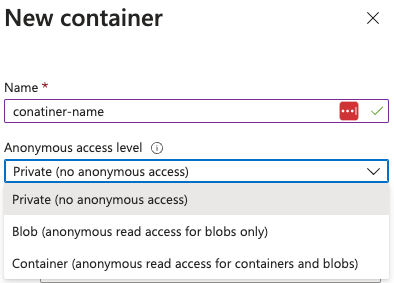
如果 “Allow Blob public access” 被 启用 (默认禁用),在创建容器时可以:
赋予 public access to read blobs (你需要知道名称)。
List container blobs 并 读取 它们。将容器设置为完全 private
Static websites 通过专用的 $web 容器从区域特定的端点提供,例如 https://<account>.z13.web.core.windows.net/。$web 容器可能通过 blob API 报告 publicAccess: null,但文件仍可通过静态站点端点访问,因此将 config/IaC 工件放在那里可能会导致 secrets 被 leaked。快速审计工作流:
# Identify storage accounts with static website hosting enabled
az storage blob service-properties show --account-name <acc-name> --auth-mode login
# Enumerate containers (including $web) and their public flags
az storage container list --account-name <acc-name> --auth-mode login
# List files served by the static site even when publicAccess is null
az storage blob list --container-name '$web' --account-name <acc-name> --auth-mode login
# Pull suspicious files directly (e.g., IaC tfvars containing secrets/SAS)
az storage blob download -c '$web' --name iac/terraform.tfvars --file /dev/stdout --account-name <acc-name> --auth-mode login
定位 storage accounts 可暴露数据: az storage account list | jq -r '.[] | select(.properties.allowBlobPublicAccess==true) | .name'。如果 allowBlobPublicAccess 为 false,你无法将 containers 设为公开。检查有风险的 storage accounts 以确认该标志和其他弱配置: az storage account show --name <acc> --query '{allow:properties.allowBlobPublicAccess, minTls:properties.minimumTlsVersion}'。枚举 container 级别的暴露 (在该标志启用的情况下):
az storage container list --account-name <acc> \
--query '[].{name:name, access:properties.publicAccess}'
"Blob": 匿名读取被允许 仅当已知 blob 名称时 (不可列出)."Container": 匿名 列出 + 读取 每个 blob.null: 私有;需要认证.在无凭证情况下证明访问 :如果 publicAccess 是 Container,匿名列出有效: curl "https://<acc>.blob.core.windows.net/<container>?restype=container&comp=list".
对于 Blob 和 Container,当名称已知时,匿名下载 blob 有效:
az storage blob download -c <container> -n <blob> --account-name <acc> --file /dev/stdout
# or via raw HTTP
curl "https://<acc>.blob.core.windows.net/<container>/<blob>"
如果发现任何可以连接的 存储 ,可以使用工具 Microsoft Azure Storage Explorer
可以使用 Entra ID principals 与 RBAC roles 来访问 storage accounts,这是推荐的方式。
storage accounts 有可以用来访问它的 access keys。 这会提供对存储账户的 full access to the storage account.
可以通过使用 access keys 签名来generate Shared Keys
注意 CanonicalizedResource 部分表示存储服务资源 (URI)。如果 URL 中的任何部分被编码,则在 CanonicalizedResource 内也应进行编码。
这 在默认情况下由 az cli 使用 来验证请求。要使其使用 Entra ID principal 的凭证,请指定参数 --auth-mode login。
可以通过签名以下信息来生成用于 blob, queue 和 file services 的 shared key :
StringToSign = VERB + "\n" +
Content-Encoding + "\n" +
Content-Language + "\n" +
Content-Length + "\n" +
Content-MD5 + "\n" +
Content-Type + "\n" +
Date + "\n" +
If-Modified-Since + "\n" +
If-Match + "\n" +
If-None-Match + "\n" +
If-Unmodified-Since + "\n" +
Range + "\n" +
CanonicalizedHeaders +
CanonicalizedResource;
可以通过签署以下信息来生成一个 shared key for table services :
StringToSign = VERB + "\n" +
Content-MD5 + "\n" +
Content-Type + "\n" +
Date + "\n" +
CanonicalizedResource;
可以通过对以下信息进行签名来生成 lite shared key for blob, queue and file services :
StringToSign = VERB + "\n" +
Content-MD5 + "\n" +
Content-Type + "\n" +
Date + "\n" +
CanonicalizedHeaders +
CanonicalizedResource;
可以通过对以下信息进行签名来生成 lite shared key for table services :
StringToSign = Date + "\n"
CanonicalizedResource
然后,要使用该密钥,可以在 Authorization 头中按以下语法进行:
Authorization="[SharedKey|SharedKeyLite] <AccountName>:<Signature>"
#e.g.
Authorization: SharedKey myaccount:ctzMq410TV3wS7upTBcunJTDLEJwMAZuFPfr0mrrA08=
PUT http://myaccount/mycontainer?restype=container&timeout=30 HTTP/1.1
x-ms-version: 2014-02-14
x-ms-date: Fri, 26 Jun 2015 23:39:12 GMT
Authorization: SharedKey myaccount:ctzMq410TV3wS7upTBcunJTDLEJwMAZuFPfr0mrrA08=
Content-Length: 0
Shared Access Signatures (SAS) 是安全的、限时的 URL,允许在不暴露账户访问密钥的情况下,授予对 Azure Storage 帐户中资源的特定访问权限。虽然访问密钥提供对所有资源的完整管理员访问权限,SAS 通过指定权限(例如读取或写入)并定义过期时间,实现了更细粒度的控制。
User delegation SAS :由一个 Entra ID principal 创建,该主体将为 SAS 签名并将用户的权限委派给 SAS。它只能与 blob and data lake storage 一起使用(docs )。可以 撤销 所有已生成的用户委派 SAS。即便可以生成比用户本身拥有的更多权限的 delegation SAS,如果该 principal 本身没有那些权限,SAS 也无法生效(不会发生 privesc)。
Service SAS :使用存储账户的某个 access keys 进行签名。可用于授予对单个存储服务中特定资源的访问。如果密钥被更新,SAS 将停止工作。Account SAS :同样使用存储账户的某个 access keys 签名。它授予跨存储账户服务(Blob、Queue、Table、File)的资源访问权限,并可包含服务级操作。
由 access key 签名的 SAS URL 看起来像这样:
https://<container_name>.blob.core.windows.net/newcontainer?sp=r&st=2021-09-26T18:15:21Z&se=2021-10-27T02:14:21Z&spr=https&sv=2021-07-08&sr=c&sig=7S%2BZySOgy4aA3Dk0V1cJyTSIf1cW%2Fu3WFkhHV32%2B4PE%3D
以 user delegation 签名的 SAS URL 看起来像这样:
https://<container_name>.blob.core.windows.net/testing-container?sp=r&st=2024-11-22T15:07:40Z&se=2024-11-22T23:07:40Z&skoid=d77c71a1-96e7-483d-bd51-bd753aa66e62&sktid=fdd066e1-ee37-49bc-b08f-d0e152119b04&skt=2024-11-22T15:07:40Z&ske=2024-11-22T23:07:40Z&sks=b&skv=2022-11-02&spr=https&sv=2022-11-02&sr=c&sig=7s5dJyeE6klUNRulUj9TNL0tMj2K7mtxyRc97xbYDqs%3D
注意一些 http params :
参数 se过期日期
参数 sp权限
sig签名
生成 SAS 时需要指明应授予的权限。根据 SAS 所针对的对象不同,可能包含不同的权限。例如:
(a)dd, (c)reate, (d)elete, (e)xecute, (f)ilter_by_tags, (i)set_immutability_policy, (l)ist, (m)ove, (r)ead, (t)ag, (w)rite, (x)delete_previous_version, (y)permanent_delete
Azure Blob Storage 现在支持 SSH File Transfer Protocol (SFTP),允许直接向 Blob Storage 进行安全的文件传输和管理,而无需自定义解决方案或第三方产品。
Protocol Support:SFTP 适用于配置了 hierarchical namespace (HNS) 的 Blob Storage 帐户。这会将 blobs 组织为目录和子目录,便于导航。
Security:SFTP 使用本地用户标识进行身份验证,不与 RBAC 或 ABAC 集成。每个本地用户可以通过以下方式进行身份验证:
Azure-generated passwords
Public-private SSH key pairs
Granular Permissions:可以为本地用户在最多 100 个容器上分配诸如 Read、Write、Delete 和 List 的权限。
Networking Considerations:SFTP 通过端口 22 建立连接。Azure 支持防火墙、private endpoints 或虚拟网络等网络配置,以保护 SFTP 流量。
Hierarchical Namespace:在创建存储帐户时必须启用 HNS。
Supported Encryption:要求使用 Microsoft Security Development Lifecycle (SDL) 批准的加密算法(例如 rsa-sha2-256、ecdsa-sha2-nistp256)。
SFTP Configuration:
在存储帐户上启用 SFTP。
创建具有适当权限的本地用户标识。
为用户配置 home directories,以定义其在容器内的起始位置。
Permission Symbol Description
读取 r读取文件内容。 写入 w上传文件并创建目录。 列出 l列出目录内容。 删除 d删除文件或目录。 创建 c创建文件或目录。 修改所有者 o更改拥有用户或组。 修改权限 p更改文件或目录的 ACLs。
az cli
az cli enumeration
```bash
# Get storage accounts
az storage account list #Get the account name from here
az storage container list –account-name
az storage container show-permission
az storage container set-permission
az storage blob list
az storage blob download
az storage container policy create
az storage queue list –account-name
az storage message peek –account-name –queue-name
az storage account keys list –account-name
az storage account show -n –query “{KeyPolicy:keyPolicy}”
az storage blob list
az storage blob download
az storage blob upload
az storage <container|queue|share|table> policy list
az storage <container|queue|share|table|blob> generate-sas
az storage <container|queue|share|table|blob> generate-sas
az storage account generate-sas
az storage blob show
#Local-Users
az storage account local-user list
az storage account local-user show
az storage account local-user list
</details>
{{#endtab }}
{{#tab name="Az PowerShell" }}
<details>
<summary>Az PowerShell enumeration</summary>
```powershell
# Get storage accounts
Get-AzStorageAccount | fl
# Get rules to access the storage account
Get-AzStorageAccount | select -ExpandProperty NetworkRuleSet
# Get IPs
(Get-AzStorageAccount | select -ExpandProperty NetworkRuleSet).IPRules
# Get containers of a storage account
Get-AzStorageContainer -Context (Get-AzStorageAccount -name <NAME> -ResourceGroupName <NAME>).context
# Get blobs inside container
Get-AzStorageBlob -Container epbackup-planetary -Context (Get-AzStorageAccount -name <name> -ResourceGroupName <name>).context
# Get a blob from a container
Get-AzStorageBlobContent -Container <NAME> -Context (Get-AzStorageAccount -name <NAME> -ResourceGroupName <NAME>).context -Blob <blob_name> -Destination .\Desktop\filename.txt
# Create a Container Policy
New-AzStorageContainerStoredAccessPolicy `
-Context (Get-AzStorageAccount -Name <NAME> -ResourceGroupName <NAME>).Context `
-Container <container-name> `
-Policy <policy-name> `
-Permission racwdl `
-StartTime (Get-Date "2023-11-22T00:00Z") `
-ExpiryTime (Get-Date "2024-11-22T00:00Z")
#Get Container policy
Get-AzStorageContainerStoredAccessPolicy `
-Context (Get-AzStorageAccount -Name <NAME> -ResourceGroupName <NAME>).Context `
-Container "storageaccount1994container"
# Queue Management
Get-AzStorageQueue -Context (Get-AzStorageAccount -Name <NAME> -ResourceGroupName <NAME>).Context
(Get-AzStorageQueue -Name <NAME> -Context (Get-AzStorageAccount -name <NAME> -ResourceGroupName <NAME>).Context).QueueClient.PeekMessage().Value
#Blob Container
Get-AzStorageBlob -Container <container-name> -Context $(Get-AzStorageAccount -name "teststorageaccount1998az" -ResourceGroupName "testStorageGroup").Context
Get-AzStorageBlobContent `
-Container <container-name> `
-Blob <blob-name> `
-Destination <local-path> `
-Context $(Get-AzStorageAccount -name "teststorageaccount1998az" -ResourceGroupName "testStorageGroup").Context
Set-AzStorageBlobContent `
-Container <container-name> `
-File <local-file-path> `
-Blob <blob-name> `
-Context $(Get-AzStorageAccount -name "teststorageaccount1998az" -ResourceGroupName "testStorageGroup").Context
# Shared Access Signatures (SAS)
Get-AzStorageContainerAcl `
-Container <container-name> `
-Context (Get-AzStorageAccount -Name <NAME> -ResourceGroupName <NAME>).Context
New-AzStorageBlobSASToken `
-Context $ctx `
-Container <container-name> `
-Blob <blob-name> `
-Permission racwdl `
-ExpiryTime (Get-Date "2024-12-31T23:59:00Z")
Az - File Shares
Az - Storage Privesc
Az - Blob Storage Post Exploitation
Az - Storage Persistence
学习并练习 AWS Hacking:HackTricks Training AWS Red Team Expert (ARTE) HackTricks Training GCP Red Team Expert (GRTE) HackTricks Training Azure Red Team Expert (AzRTE)
支持 HackTricks
 HackTricks Cloud
HackTricks Training AWS Red Team Expert (ARTE)
HackTricks Training GCP Red Team Expert (GRTE)
HackTricks Training Azure Red Team Expert (AzRTE)
.png)